Media Browser
Search stock video, GIFs, images, emojis and audio inside Premiere, add them to your sequence with a position and animation, or add media straight from your transcript.
The Brevidy Media Browser searches stock video, GIFs, images, emojis and audio inside Premiere. Pick something, choose where it sits and how it animates, and Brevidy places it in your sequence.
Before you start#
- Adding media doesn't use minutes.
Suggest medianeeds a Producer or Team Pro plan. See Plans and features. - Save your Premiere project first. Downloads go into a
mediafolder next to the project file. To use your own folder, click the gear in the Media Browser header.
Add stock media#
- Choose
Window>Extensions>Brevidy Media Browser. - Move the playhead (the blue line that marks the current frame) to where the media should start.
- Choose a category:
Videos,Gifs,Images,EmojisorAudio. - Type in
Search stock media...and pressEnter. - Click a result, then click
Continue. - Choose a
Positionand an animation. - Click
Insert.
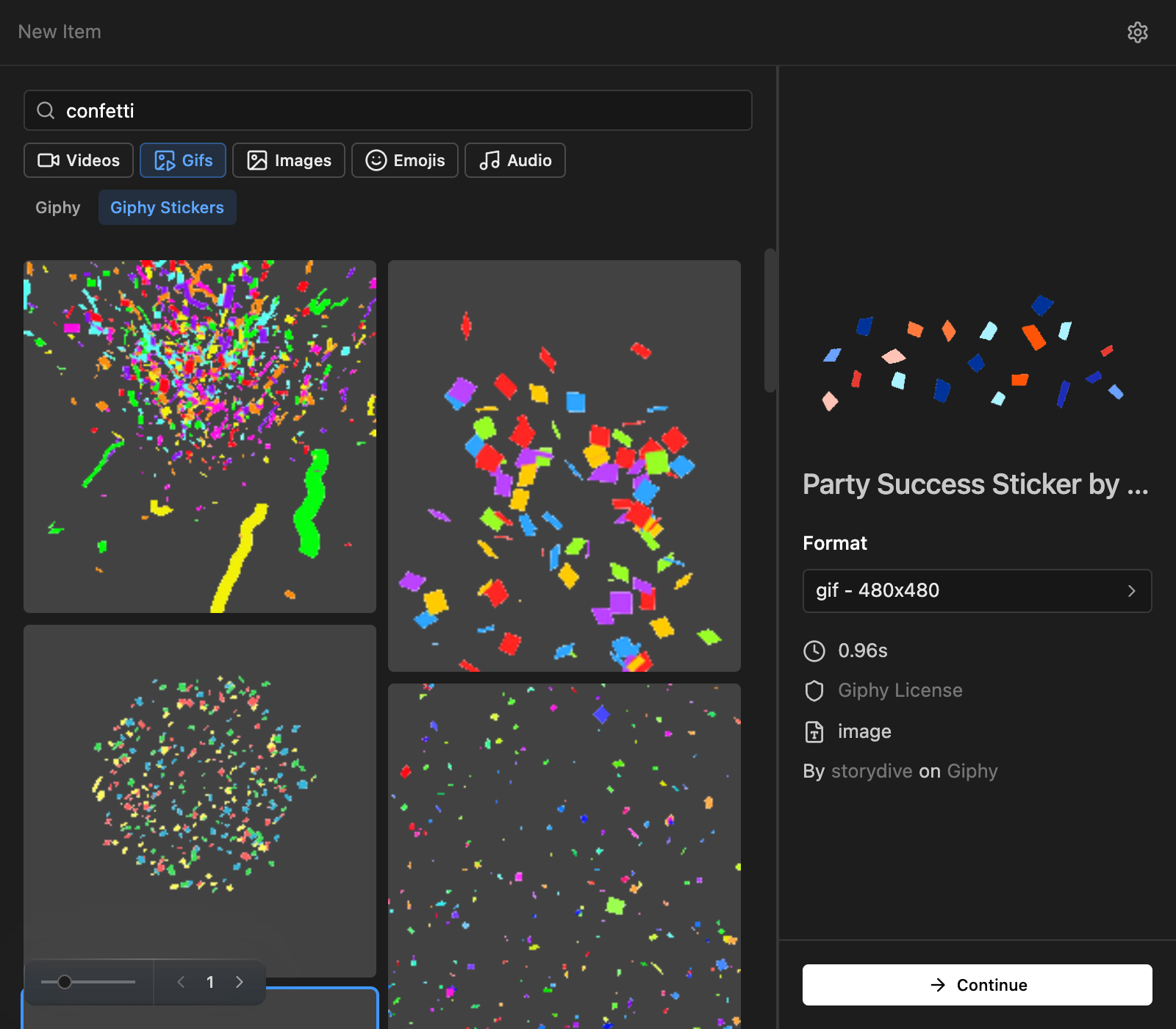
Position places it on screen, for example Center, Full Screen or Above Captions. For animation, click Intro, Constant or Outro and pick a preset.
The Above Captions Left, Above Captions Right, Below Captions Left and Below Captions Right positions, and a few animation presets such as Flip, Bounce and Pulse, are on paid plans only. On the free plan they show as locked.
To change media you've added, click its clip in the timeline, change the position or animation in the Media Browser and click Update.
Add media from your transcript#
The sequence needs Brevidy captions. See Create captions.
Over words you select#
- In the Brevidy panel, click the Text tool and drag across the words the media should cover.
- Click the
Selectionbutton and chooseAdd media. - In the Media Browser, pick a result, click
Continue, set the position and clickInsert.
Suggest media#
- At the bottom of the Brevidy panel, click
New>Suggest media. - Choose a category, a source and a
Position. - Optional: describe what you want, for example "reaction GIFs".
- Click
Generate. It can take a minute.
Suggestions appear as thumbnails beside the transcript, with a colored bar under their words. Nothing is added to your sequence yet.
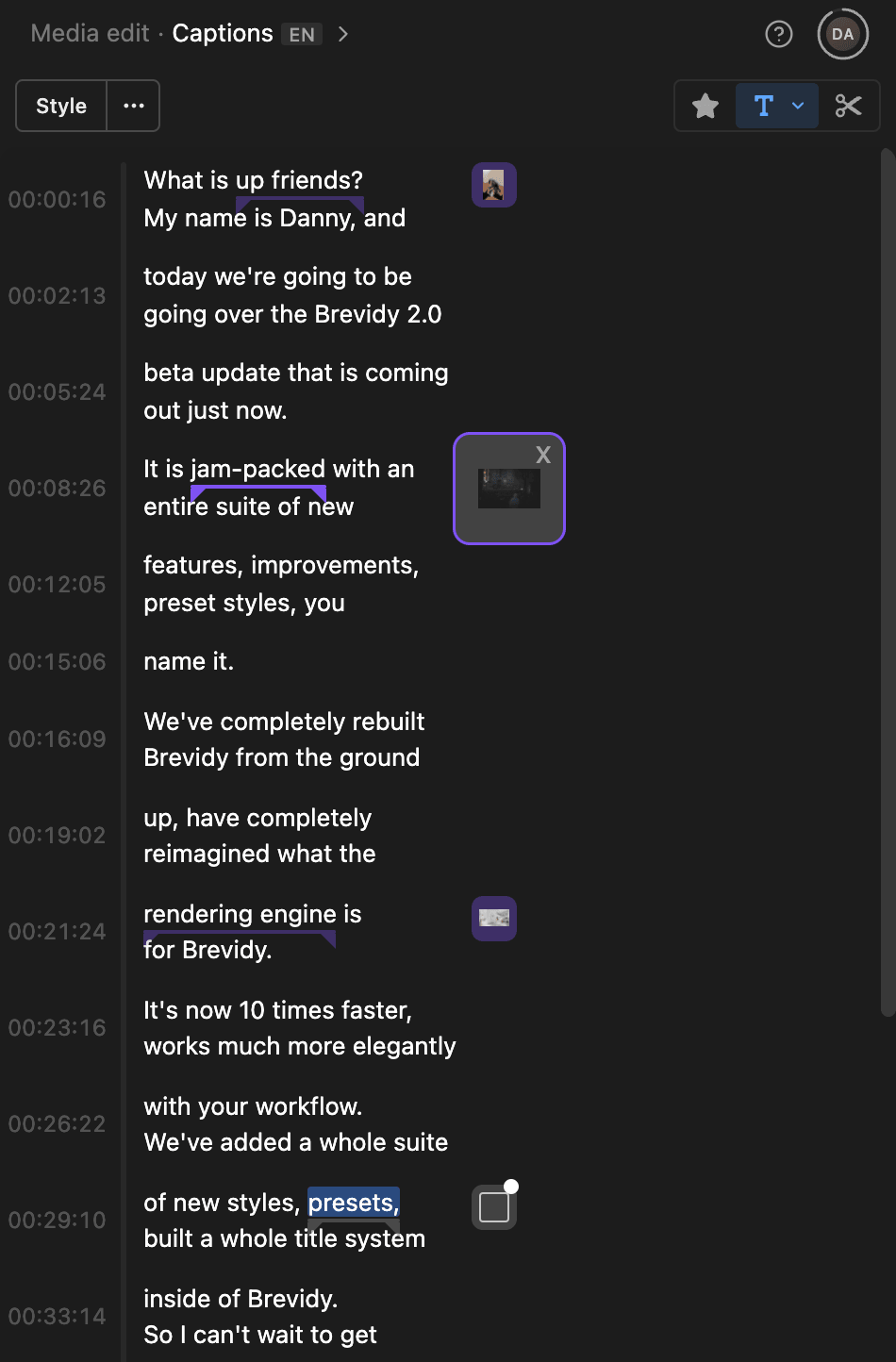
- Add one: click its thumbnail and click
Insert. - Change its timing: drag the triangle at either end of its bar.
- Remove one: hover the thumbnail and click
x. If you'd added it, this also deletes the clip.
Good to know#
- Known issue: inserting a GIF or other short looped media clip can wipe the audio under it on the matching audio track. Premiere's Undo brings it back, which can take a few presses.
- GIFs and clips shorter than the time you give them are looped to fill it.
- Imported media goes into a "Brevidy media" bin in your Project panel.
Suggest mediais grayed out until the sequence has captions.