Presets
Apply, find, save, group and share caption presets, or describe a look and let Preset Studio design it.
A preset is a saved caption style: fonts, colors, animation, effects and position. Apply one, then fine-tune it on the Edit tab.
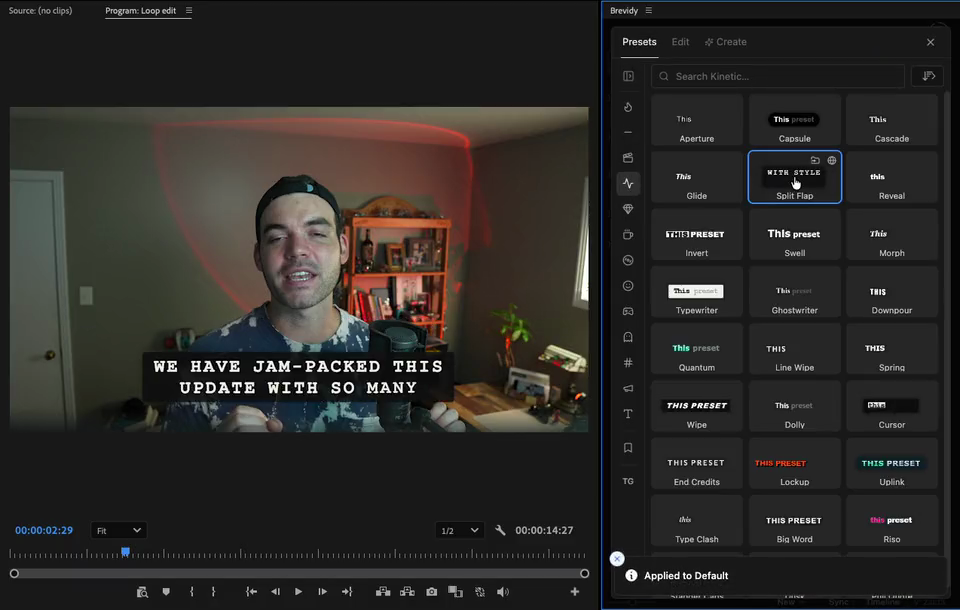
Apply a preset#
- Click
Stylein the Brevidy panel. - Open the
Presetstab. - Pick a group from the rail on the left.
- Click a preset card. Hover a card to preview it.
If your caption set has more than one style, Brevidy asks Apply to which style?. Pick the style to replace, or New style.
Pick a preset before you create captions#
- In the Create window, click
Advanced. - Pick a preset next to
Caption Style.
Brevidy remembers it for your next caption set.
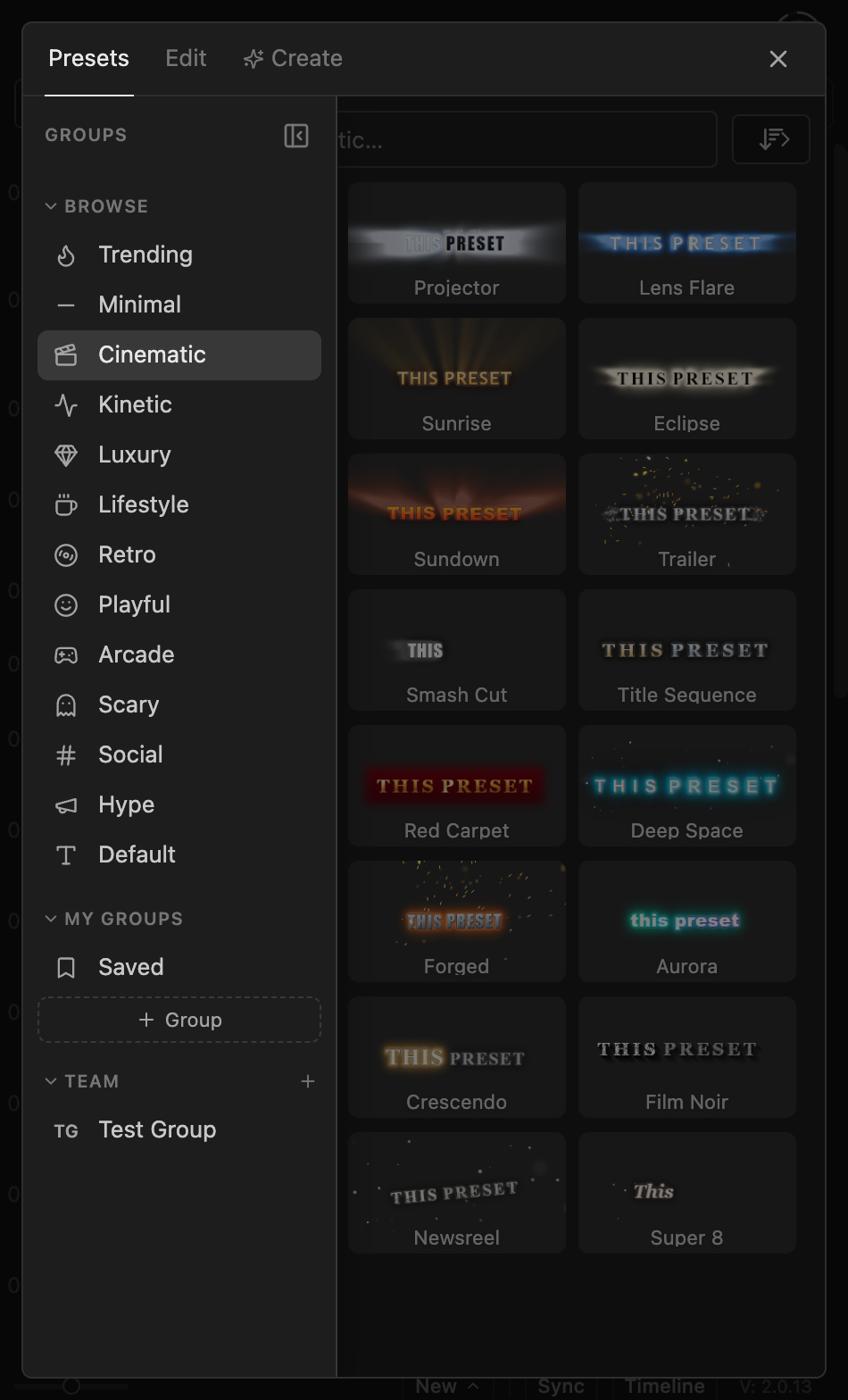
Find a preset#
Click Show groups to see the group names.
Browse:Trending(presets the Brevidy community shares), then Brevidy's own groups.My Groups:Saved(your presets not in a group), then groups you made.Team: groups shared with your team.
Search looks only in the group you're in.
Save a style as a preset#
- On the
Edittab, pick the style in the style switcher. - Click
Save as preset. - Optional: pick a
Group, orNew group. - Type a
Preset Nameand clickSave.
Only the style picked in the style switcher is saved.
Organize presets in groups#
The panel says "folder" when you move or copy a preset. It means a group.
- Make a group: click
Show groups, then+next toMy Groups. ChoosePersonalorTeam, name it and clickCreate. - Rename or delete a group: open it and click the pencil next to its name. Deleting a group deletes every preset in it, for good.
- Move or copy a preset: hover the card and click the folder button.
- Give a group an icon: right-click the group and choose
Change icon….
Share presets with your team#
On a team plan, presets in a team group are shared with everyone in your organization.
- Choose
Teamwhen you make a group, orNew team folderwhen you move a preset. - Making team groups needs the creator role. Without it, ask your team admin.
See Team plans.
Share a preset in Trending#
Hover one of your presets and click Share publicly (Trending), or turn it on when you save. Click Remove from public to stop. Team presets can't go in Trending.
How many presets you can save#
| Plan | Personal presets |
|---|---|
| Free | 1 |
| Captioner | 3 |
| Producer and team plans | No limit |
Presets in a team group don't count. Presets saved from Preset Studio do. See Plans and features.
Preset Studio#
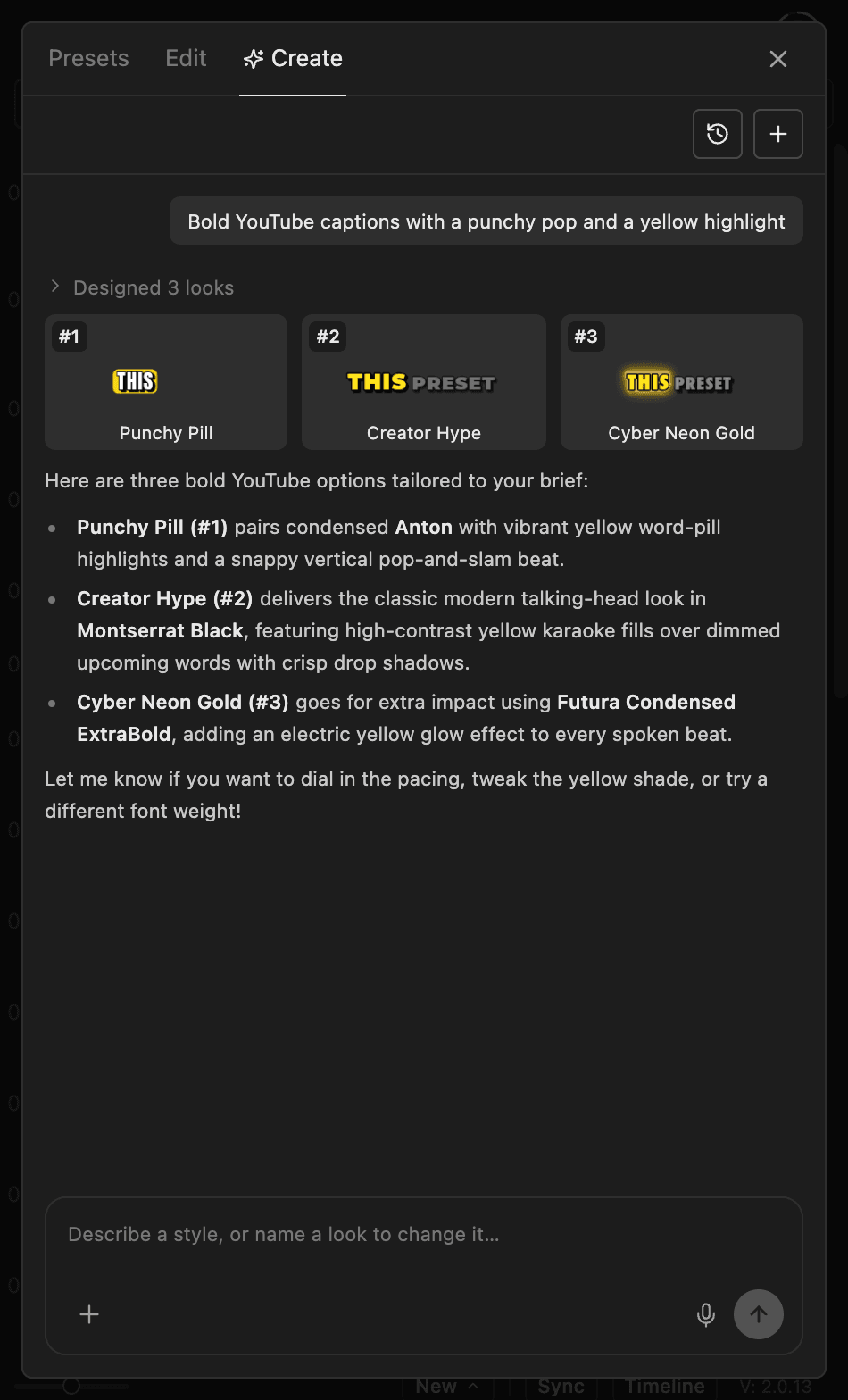
Preset Studio designs caption looks from a description. It's the Create tab of the Style window, on paid plans only. It uses AI, so results vary.
- Click
Styleand open theCreatetab. - Describe the look, for example "Clean documentary look: white type, subtle shadow, no animation".
- Optional: click
+to attach up to three screenshots. - Press
Enter. Look cards appear in the chat. - To change one, refer to it: "Make look 2 more readable".
- Click a card, then
Useto apply it orSaveto save it as a preset.
Good to know#
- A preset stores the style only. Your words and line breaks stay as they are.
- Fonts you don't have show the missing-font notice. Preset Studio looks can show a different font on another computer. See Fonts.
- Removing a preset can't be undone. Deleting a public preset removes it for everyone who liked it.
- Title presets live in Titles. See Title presets.