Spoken and highlighted words
Style the word being said and the words you highlighted, with their own font, animation, effects and word background.
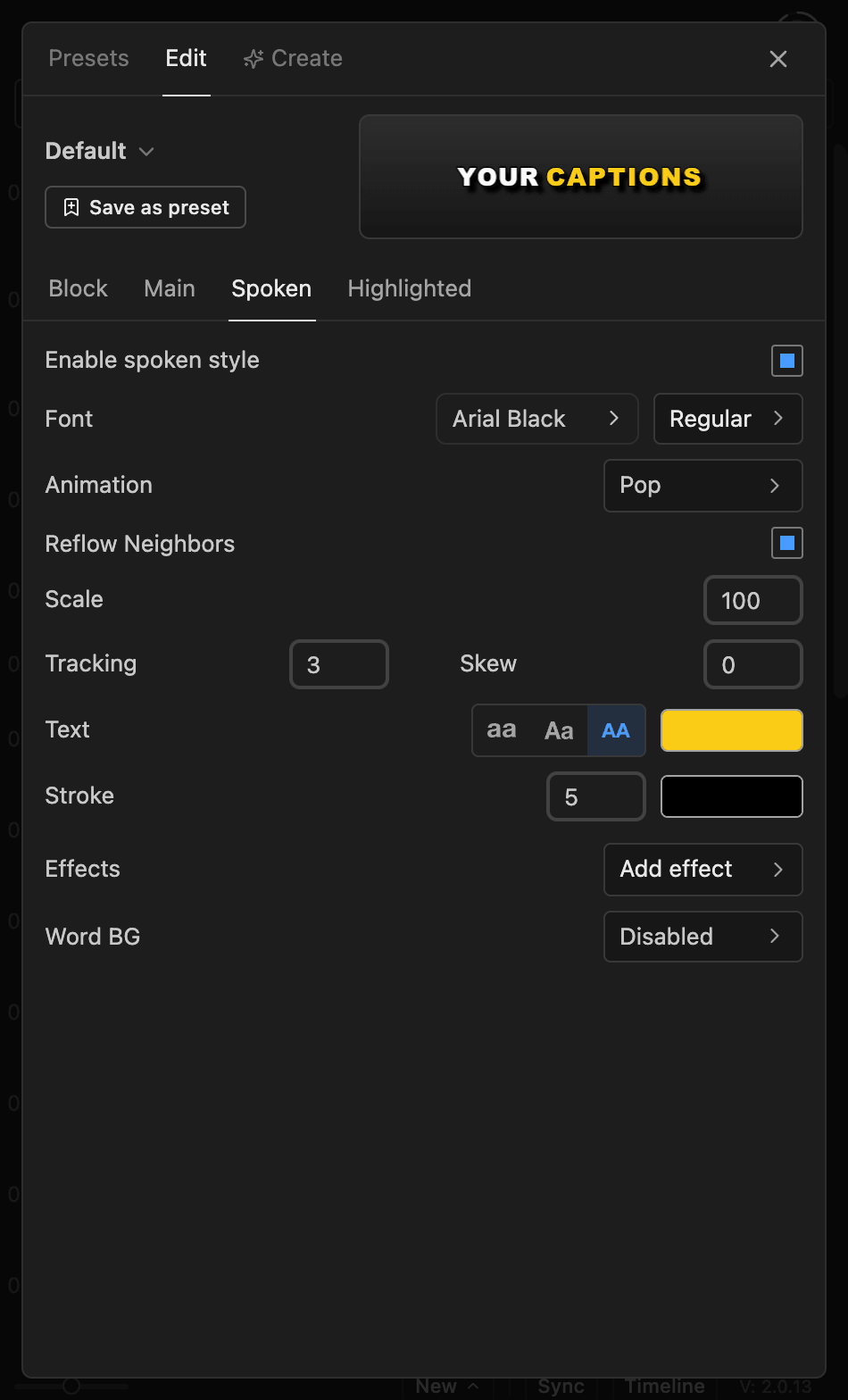
Spoken styles the word being said, so it lights up as the speaker talks (Active Text in 1.9). Highlighted styles words you marked with the Highlight tool. Open them with Style > Edit.
Each word uses Highlighted if it's highlighted, then Spoken while it's being said, then Main.
Turn a word style on#
Tick Enable spoken style or Enable highlight style. Off, those words use Main.
To mark words, use the Highlight tool or Suggest highlights. See Highlight words.
Settings on both tabs#
Font: a font for these words only.Animation: how each word animates as it's spoken.Per Characterplays it letter by letter. See Word animations.Reflow Neighbors: a word that grows pushes its neighbors aside.Scale: size compared with the main text. Hidden whenScale Lines to Fitis on.Tracking,Textcase, fill color,Stroke: as on Main text.Effects: text effects for these words only, such as aGlow.
Add a background behind words#
- Click
Word BGand tickEnable Word BG. - Set the
Colorand opacity. - Adjust
Roundness,Padding XandPadding Y.
Turn off Wrap Height for equal heights. Animation inside Word BG animates the shape. See Word background animations.
Good to know#
- Captions made with Brevidy 1.9 don't have
Per Character,Reflow Neighbors,Effectsor the newer word animations.