AutoCut
Turn a long recording into short, captioned clips, each in its own new sequence.
AutoCut turns a long recording into short clips for social media. Brevidy transcribes the part you mark, picks the strongest moments, and puts each one in its own new captioned sequence. It works best on talk-led recordings such as interviews, podcasts and streams.
Before you start#
- AutoCut needs a Producer or Team Pro plan. See Plans and features.
- The Brevidy Captions effect must be installed. See Install Brevidy.
- Use a sequence without Brevidy captions. The
AutoCutbutton is on theCreate Newscreen.
Make clips with AutoCut#
- Open the sequence with your recording.
- Press
IandOin the timeline to set In and Out points around the part you want, up to 120 minutes. - In the Brevidy panel, click
AutoCut. - Choose an
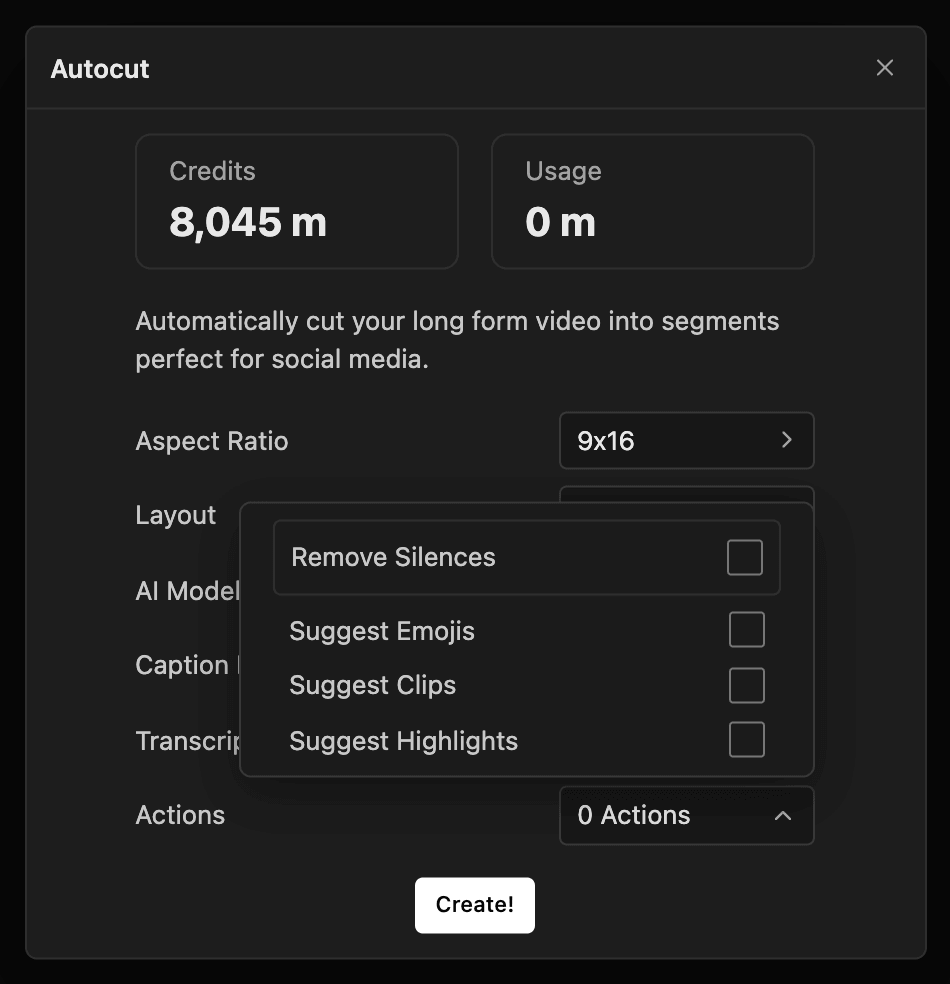
Aspect Ratio, aLayoutand aCaption Preset. - Check the transcription settings. See Transcription and languages.
- Click
Create!.
What AutoCut makes#
- One new sequence per clip, in a "Brevidy Cuts" bin (a Project panel folder), strongest clip first.
- Your original sequence is nested inside each new sequence and isn't changed. A nest is a sequence placed inside another as a single clip.
- Each clip has Brevidy captions in the preset you picked.
- The
AutoCroplayout runs AutoCrop on each clip and puts the results in the "Brevidy AutoCrop" bin. See AutoCrop.
Change where a clip starts or ends#
Drag the start or end of the clip in the Premiere timeline. Clicking a word with the Cut tool doesn't move the In or Out point.
Settings#
| Setting | What it does | Default |
|---|---|---|
Aspect Ratio | Original keeps your sequence's shape. 9x16 makes vertical clips | 9x16 |
Layout | Fit Blur BG, Fit No BG, Fill or AutoCrop. With AutoCrop, Aspect Ratio is ignored | Fit Blur BG |
Remove Silences | Cuts pauses from each clip. See Cut and remove silences | Off |
Suggest Highlights | Highlights key words in each clip's captions. See Highlight words | Off |
Good to know#
- AutoCut uses video workflow minutes for the length of your In and Out range, shown in the
Usagetile. New transcription is billed separately, and a cancelled run doesn't use AutoCut minutes. See How minutes are counted. - AutoCut can't use audio inside nested sequences or clips with a speed change. If that's all the range has, you'll see "No transcribable source media in the selected range."
- To undo a finished run, delete the sequences it made.
- Each sequence's In and Out points mark the clip. Export using In to Out, or you'll get black at the start.