Cut and remove silences
Use the Cut tool to remove pauses between words, one at a time or all at once on a copy of your sequence.
The Cut tool finds pauses between words in your captions and removes them from your sequence, one at a time or all at once on a copy.
Before you start#
- The sequence needs Brevidy captions. The Cut tool only sees pauses inside the captioned part. See Create captions.
Remove silencesneeds a Producer or Team Pro plan. See Plans and features.
Cut one pause#
- In the Brevidy panel, click the Cut tool in the caption toolbar. Red markers appear after each pause longer than
Threshold (s). - Click a red marker.
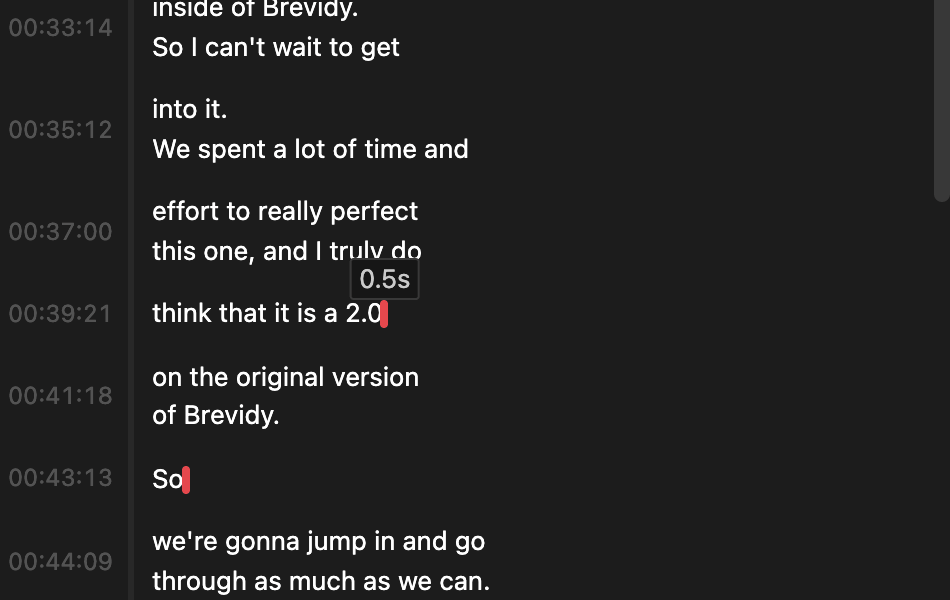
Brevidy cuts that pause out of the current sequence on every track and closes the gap. Your captions move to stay in time.
Remove every pause#
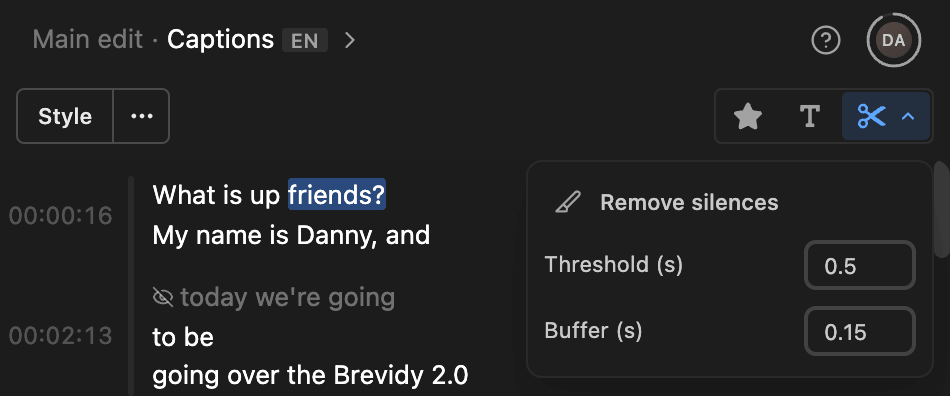
- Click the arrow next to the Cut tool to open its menu.
- Set
Threshold (s)andBuffer (s). - Click
Remove silencesand confirm.
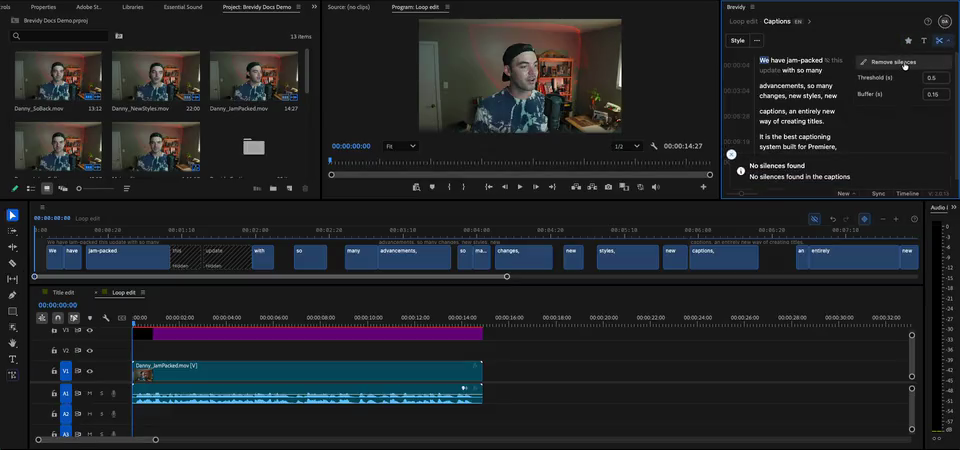
Brevidy cuts every pause in a copy of the sequence and opens it. Your original isn't changed, and every caption set comes along in time.
Settings#
| Setting | What it does | Default |
|---|---|---|
Threshold (s) | The shortest pause that counts as a silence. Raise it to cut only long pauses | 0.5 |
Buffer (s) | How much of each pause to keep after the word before it. Raise it if cuts feel abrupt | 0.15 |
Good to know#
- "No silences found" means no pause is longer than the threshold. "Silence too short" means that pause is shorter than the buffer.
- Cutting closes the gap on every track, including music and B-roll. Check them after a big cut.
- To change where an AutoCut clip starts or ends, see AutoCut.