Translate captions
Make a caption set in another language from captions you've already edited, and switch, rename, hide or delete caption sets.
Brevidy translates your edited captions, so corrections, speaker names and highlights carry over. The translation is a new caption set with the same styles and timing, on the track above the original.
Before you start#
- Finish editing the original. Later edits don't reach the translation.
- Sets marked
Legacy(made with Brevidy 1.9) need upgrading first. See Upgrading from 1.9.
Translate a caption set#
- Open the caption set you want to translate.
- Click the set switcher at the top of the Brevidy panel.
- Choose
New translation…. - Choose a
Language. - Click
Translate.
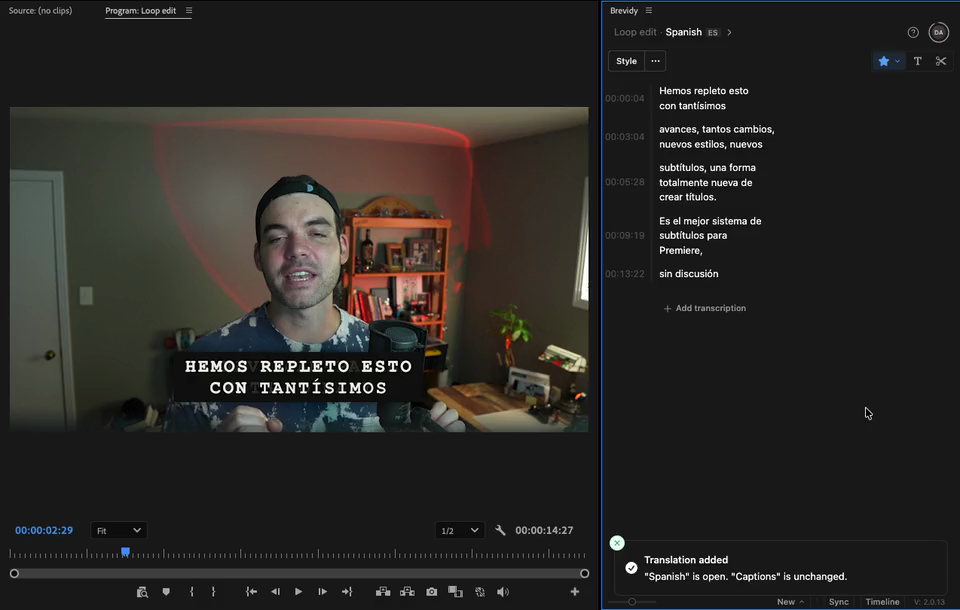
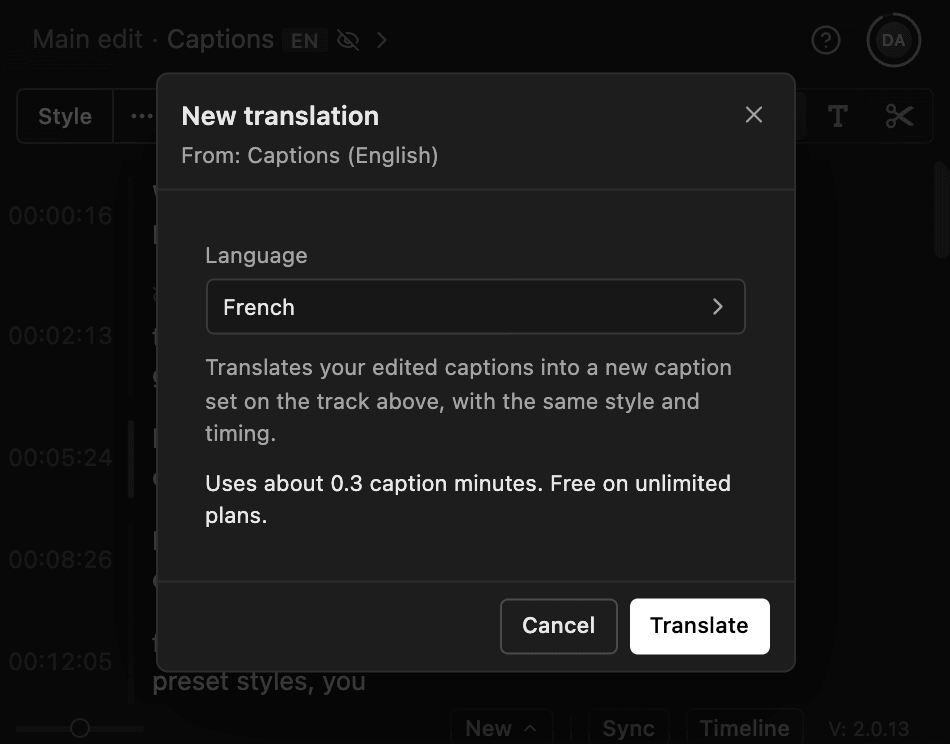
The new set opens when it's done, named after its language. Cancel translation stops it at no charge.
Hide the original#
Both sets show after translating, so the video has captions twice.
- Open the set switcher.
- Click the original set.
- Choose
Hide in Premiere.
Translate while you create captions#
- In the Create window, click
Advanced. - Tick
Translate to language. - Choose a
Translation Language. - Click
Create.
The original set is kept but hidden, so only the translation shows.
Languages#
English, Spanish, French, German, Italian, Portuguese, Brazilian Portuguese, Dutch, Polish, Swedish, Danish, Norwegian, Finnish, Czech, Romanian, Turkish, Russian, Ukrainian, Japanese, Korean, Simplified Chinese, Traditional Chinese, Indonesian, Vietnamese and Hindi. Right-to-left languages such as Arabic and Hebrew aren't available. Each language can have one set per sequence.
Cost#
A translation uses about a quarter of the set's length in caption minutes: a 10-minute set uses about 2.5 minutes. Unlimited plans aren't charged, and a cancelled or failed translation costs nothing. See How minutes are counted.
Caption sets#
A sequence can hold several caption sets, each with its own words, styles and speakers. Most come from translating or pasting captions. To caption more footage in a set, use Add more captions to a set.
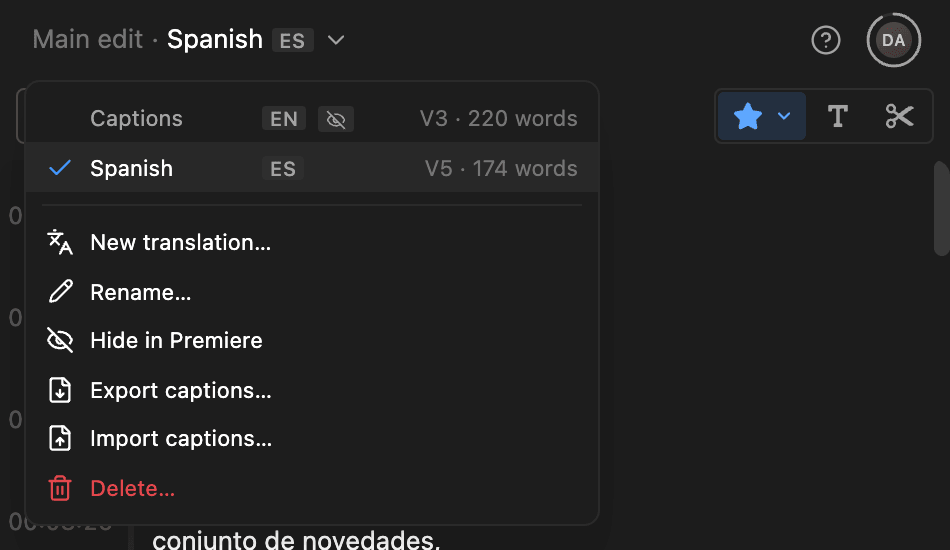
Open the set switcher, click a set to edit it, then choose:
Rename…: up to 60 characters.Hide in Premiere: the set doesn't show in the video or exports.Show in Premierebrings it back.Delete…: removes that set's clips. Creating captions for that footage again uses no minutes.
Sync and Brevidy cuts change every set. Text, line breaks, styles and speaker names change only the open set.
| Badge | Meaning |
|---|---|
Legacy | Made with Brevidy 1.9. Can't be renamed, hidden or translated. |
Outside edit | Its clips sit past the end of your edit. |
Different audio | Pasted text that doesn't match the footage. Sync leaves it alone. |
| Crossed-out eye | Hidden in Premiere. |
Good to know#
- Known issue: after
New translation…, both caption sets stay visible, so captions show twice until you hide one withHide in Premiere. - Translations don't update. To pick up edits or footage added later, delete the translation and translate again.
- Some lines can stay in the original language. The notice says how many. Type those in yourself.
- If you see "'Spanish' wasn't updated. Run Sync to realign it.", click
Sync.