Sync and retime captions
Make captions match the sequence after you edit it, fix word timing in the Caption Timeline, and copy captions to another sequence.
Captions don't follow your edits on their own. Click Sync and Brevidy matches every caption set to the edit, keeping your text fixes and styles.
Sync your captions#
Sync after trimming, moving, deleting or reordering clips, muting or soloing tracks, or disabling clips. Word and style changes don't need it.
- Finish your edit in Premiere.
- Click
Syncat the bottom of the Brevidy panel. - If Brevidy asks you to confirm minutes, check the estimate and click
Confirm. - Read the notice. See Notices.
Sync uses minutes only for footage not yet transcribed on this computer. See How minutes are counted.
Add more captions to a set#
- Click
+ Add transcriptionat the top or bottom of the transcript. Brevidy adds a caption clip in the first free gap on the same track. - Drag the clip, or its ends, over the part you want.
- Click
Create.
The top button shows when there's at least a second of sequence before your first caption. Only the new footage is transcribed. Add Transcription is also in the account menu.
Or:
- Drag the end of a caption clip in Premiere's timeline to cover more, then click
Sync. - Cut the caption layer yourself (for example with the Razor tool), move or extend the pieces, then click
Sync.
Notices#
| Notice | What to do |
|---|---|
| "Audio at … runs past the caption clips, so it isn't captioned." | Drag the end of a caption clip over that audio and Sync. |
| "Captions at … were over footage no caption clip covers now, so Sync removed them." | Extend a caption clip over that footage and Sync. |
| "Some audio wasn't captioned" | The notice gives the reason, such as a muted track. Over offline media, the captions stay put: relink the media and Sync. See Why wasn't this audio captioned? |
| "N words not captioned" | A music or background track was left out. See Music and background audio. |
| "Sync skipped" | The set is pasted text that doesn't match this footage. See Copy captions to another sequence. |
When Sync asks first#
| Prompt | Why | Your choices |
|---|---|---|
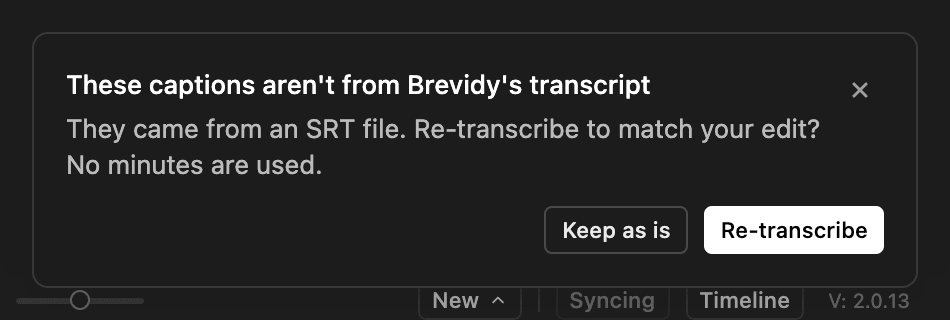
| "Replace these captions?" | A captioned clip was swapped for other media, so your edits there would be lost. | Continue captions the new audio. Cancel changes nothing. |
| "Remove these captions?" | The audio some captions came from was removed, muted or turned off. | Continue removes those captions. Re-transcribe captions what plays there now, in a new set. Cancel. |
| "Can't sync these captions" | All the audio the captions came from is gone. The prompt names each clip and why. | Put the audio back and Sync, or click Re-transcribe to caption what plays there now, in a new set. |
Imported and upgraded captions#
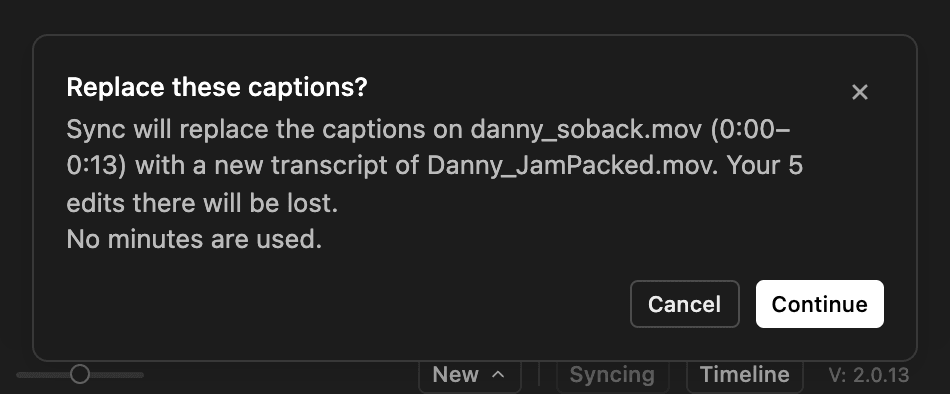
Captions imported from an SRT or WebVTT file, or upgraded from Brevidy 1.x, keep their own timing. Sync doesn't move them. It asks These captions aren't from Brevidy's transcript instead:
Re-transcribe: Brevidy transcribes the footage under them into a new set and turns the old set off. Uses minutes. The new set keeps the look, position and speakers. Text fixes, highlights and line breaks come from the new transcript, so redo any you need. ClickUndoon the notice to go back.Keep as is: nothing changes.
+ Add transcription on these captions asks the same. Your other caption sets sync either way. To fix a few words' timing without re-transcribing, use the Caption Timeline.
A translation of these captions can't be re-transcribed. Re-transcribe the original set, then translate it again.
Retime words in the Caption Timeline#
The Caption Timeline shows the open caption set's words on a timeline that follows Premiere's playhead (the blue line that marks the current frame).
- Click
Timelineat the bottom of the Brevidy panel. For a title, it's in the title's stage bar. - Dock it above Premiere's Timeline panel.
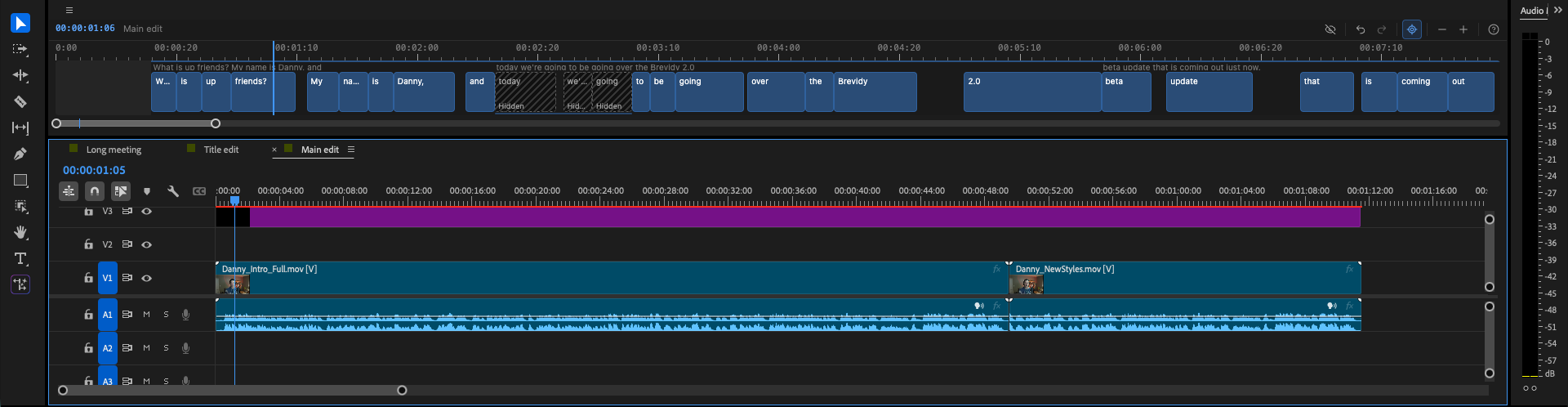
- Move a word: drag it.
- Change a word's start or end: drag its edge.
- Roll between two words: select both and drag the edge they share.
- Stretch or squeeze a group: select the words, then drag the end of the last one.

| Keys | Action |
|---|---|
Cmd/Ctrl + click, Shift + click | Add a word to the selection, select a range |
Space | Play or pause Premiere |
Option + Left / Right | Nudge the selected words one frame |
+ / -, or double-click a block | Zoom in or out, zoom to fit that block |
The ? icon in the toolbar lists every shortcut.
Hide captions during gaps#
By default, captions stay on screen through pauses of up to 2 seconds.
- Click the eye-off icon in the Caption Timeline toolbar.
- Turn on
Hide gaps over. - Use
-and+to set the pause length, from 0 to 5 seconds.
It's the same setting as Hide During Gap in the Style window.
Copy captions to another sequence#
Use Premiere's Copy and Paste. Brevidy fits the pasted captions to their new place for free and keeps your text fixes and styles.
- In the source sequence, select the caption clips together with the video and audio clips under them.
- Press
Cmd+C(Mac) orCtrl+C(Windows). - Open the other sequence and move the playhead to where you want them.
- Press
Cmd+V(Mac) orCtrl+V(Windows). - With the Brevidy panel open on that sequence, wait for the "Captions pasted" notice.
Pasted captions merge into the set in their language, or become their own set. If part of the paste doesn't match the audio, the notice offers Transcribe it, which uses minutes for only those seconds.
If Brevidy asks what to do#
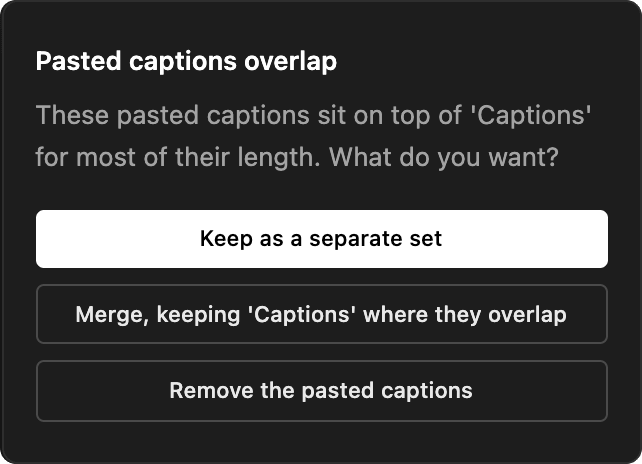
Pasted captions overlap shows when most of the paste sits on a set in the same language.
| Choice | What happens |
|---|---|
Keep as a separate set | The pasted captions become their own set. |
Merge, keeping '<set name>' where they overlap | The pasted words join the existing set. |
Remove the pasted captions | Brevidy removes the pasted caption clips. |
Pasted captions don't match shows when the footage under the paste isn't the footage it came from.
| Choice | What happens |
|---|---|
Re-caption this footage in the same style | Brevidy transcribes the footage and keeps the look. Uses minutes. |
Keep the text as it is | The set gets the Different audio badge and Sync leaves it alone. |
Remove them | Brevidy removes the pasted caption clips. |
Duplicate Sequence brings every caption set along. Captions inside a nested sequence stay with the nest.
Good to know#
- Saved transcripts stay on the computer that made them. Syncing the project on another computer may transcribe again, which uses minutes.
- Captions blank after reopening or moving a project? Don't Sync. See Captions blank or missing.
- If you see "Pasted captions weren't fitted", click
Sync. - Known issue: if you delete every audio clip under a caption set and click
Sync, you seeSync FailedwithContact Support. Your captions aren't lost. Put the audio back or unmute it, then Sync again.