Titles
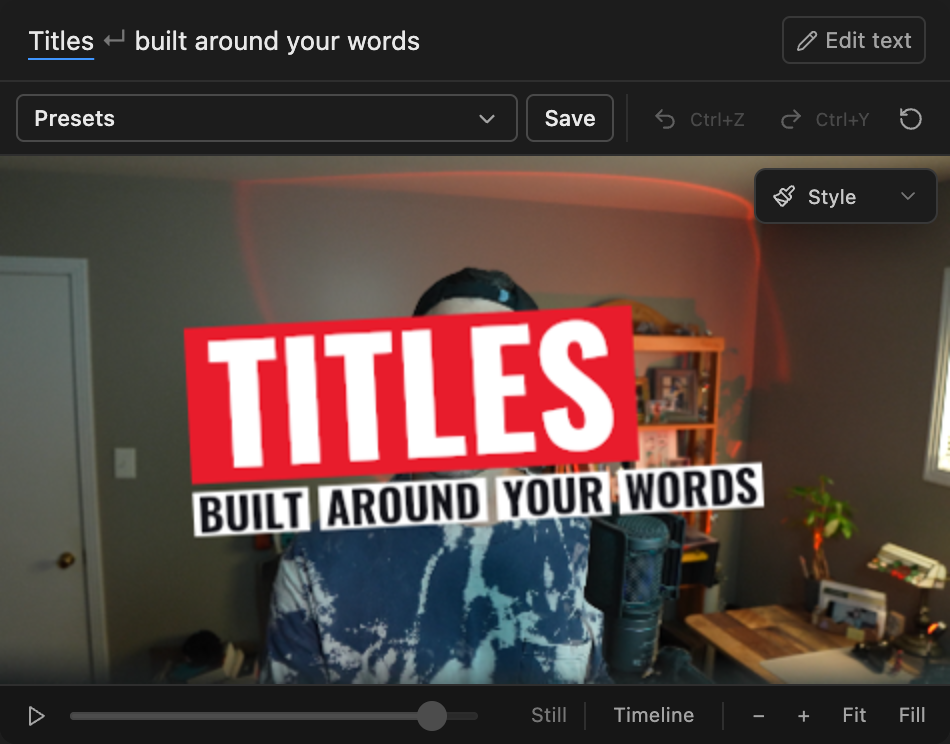
Turn words from your transcript, or text you type, into an animated title that lays itself out around your words.
A Brevidy title turns a line from your transcript, or text you type, into an animated title on its own clip. Pick a look, and the title arranges itself around your words.
Before you start#
- The Brevidy Captions effect must be installed, and Premiere restarted once after it installs. See Install Brevidy.
- Making new titles needs a paid plan. See What's on paid plans. Adding a title doesn't use minutes.
Make a title#
From your transcript#
Use this when someone says the line. The words appear as they're spoken.
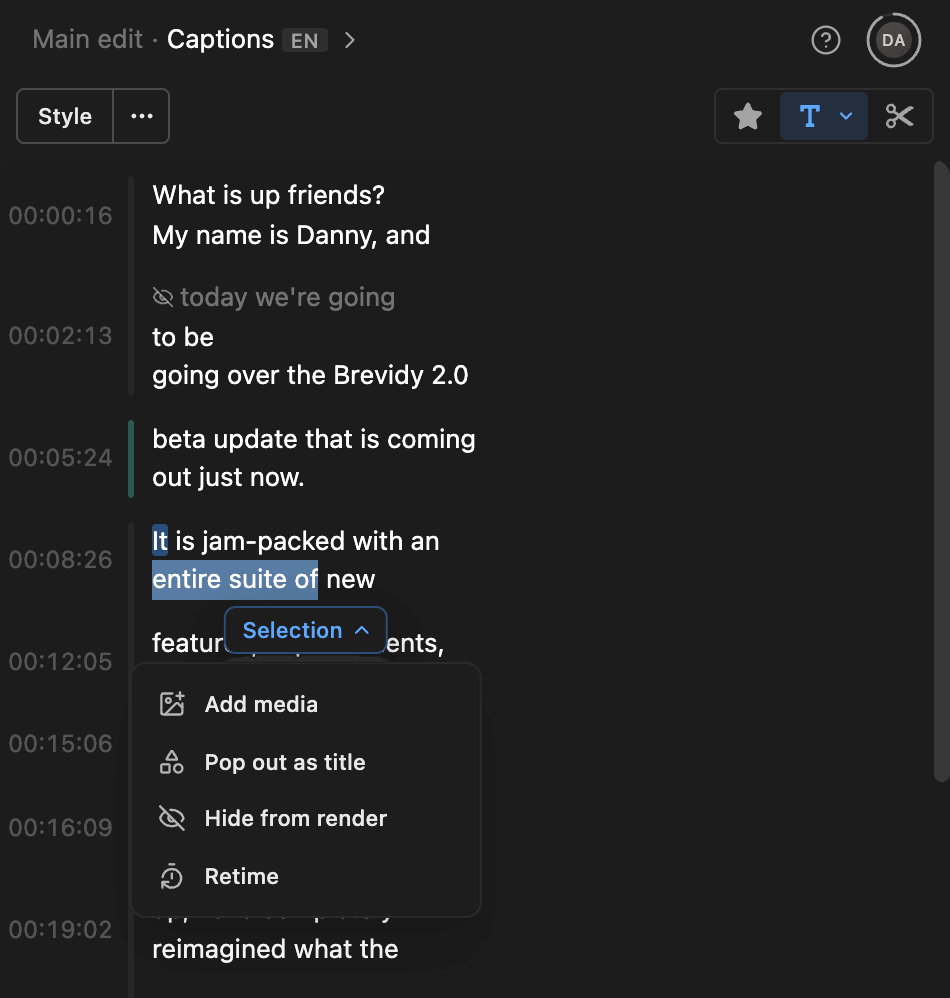
- In the Brevidy panel, click the Text tool in the caption toolbar.
- Drag across the words you want in the title.
- Click the
Selectionbutton and choosePop out as title. - Click a look in the preset browser.
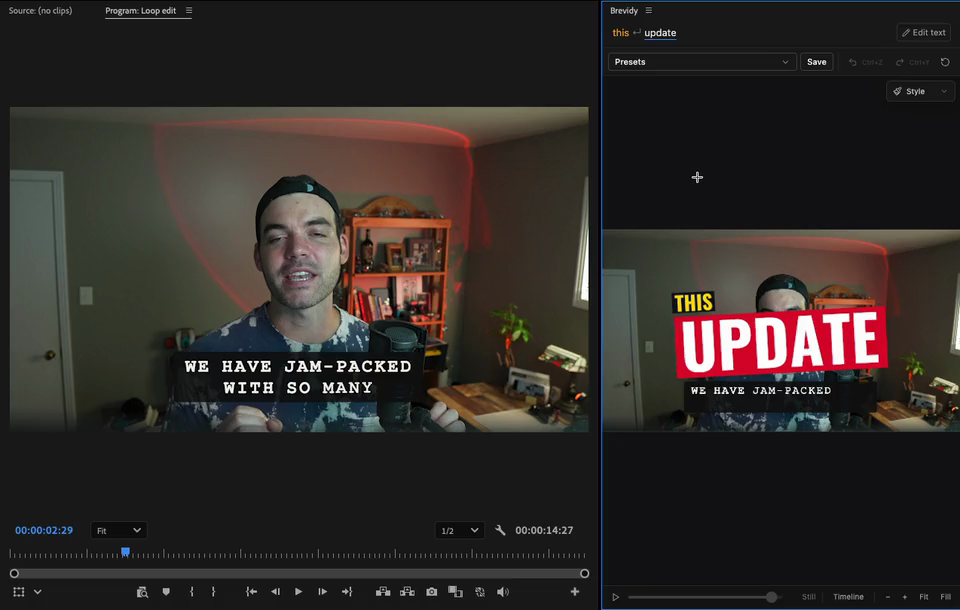
Brevidy adds the title clip, selects it and switches to the Title view. The title runs from the first word to half a second after the last.
From text you type#
Use this for a title nobody says, such as a chapter heading or a name.
- Move the playhead (the blue line that marks the current frame) to where the title should start.
- At the bottom of the Brevidy panel, click
New>New title…. On a sequence with no captions, clickTitleson theCreate Newscreen instead. - Type your title and click
Choose a look. - Click a look.
Each look sets its own line breaks. A typed title is at least 3 seconds long. Nothing is added until you click a look. See Title presets.
Popped-out words are hidden from your captions#
Popping out words hides them in the active caption set, so they don't show twice. Deleting the title doesn't bring them back. To show them again, select them with the Text tool and choose Selection > Unhide. See Edit words.
Good to know#
- You edit a title only on the stage in the Brevidy panel, not in the Program Monitor. See Edit a title.
- A title keeps its own copy of its words. Editing the transcript or running Sync doesn't change it.
- A title's file is saved in the
.brevidyfolder next to your project. Move that folder with the project, or the title can't be opened. See Where your captions are saved. - To delete a title, select its clip in the timeline and press
Delete. Unhide the popped-out words if you want them back in your captions.