Upgrading from 1.9
How to move from Brevidy 1.9 to 2.0, what happens to captions you made in 1.9, and where familiar features went.
Brevidy 2.0 draws captions with its own Premiere effect instead of Essential Graphics templates (MOGRTs). Your 1.9 projects keep working, and you can keep editing most old captions.
Update to 2.0#
Save your open projects first. If you share projects with people on 1.9, update together.
Updating inside the 1.9 panel takes two Premiere restarts:
- When the panel shows
Brevidy 2.0.x is available., clickUpdate now. - Restart Premiere.
- Open the Brevidy panel. It installs the Brevidy Captions effect. On Windows, click
Install now, thenYes. - Restart Premiere again when the notice says
Restart Premiere Pro to finish.
Your old captions#
Captions made in 1.9 have a Legacy badge in the set switcher and play as before.
| On a legacy set | What happens |
|---|---|
| Edit words, retime, change style, export, delete | Works as is |
Sync, Add Transcription, cutting (including Remove silences) | Upgrades the set first |
Rename, Hide in Premiere, New translation…, fit pasted captions | Not available |
Upgrade old captions to 2.0 captions#
The upgrade keeps your words, timing and styles, and each split caption clip's position and size. It uses no minutes.
- Run
Sync,Add Transcriptionor a cut on the legacy set. - On
Upgrade to native captions, clickConfirm. - Wait for
Captions upgraded.
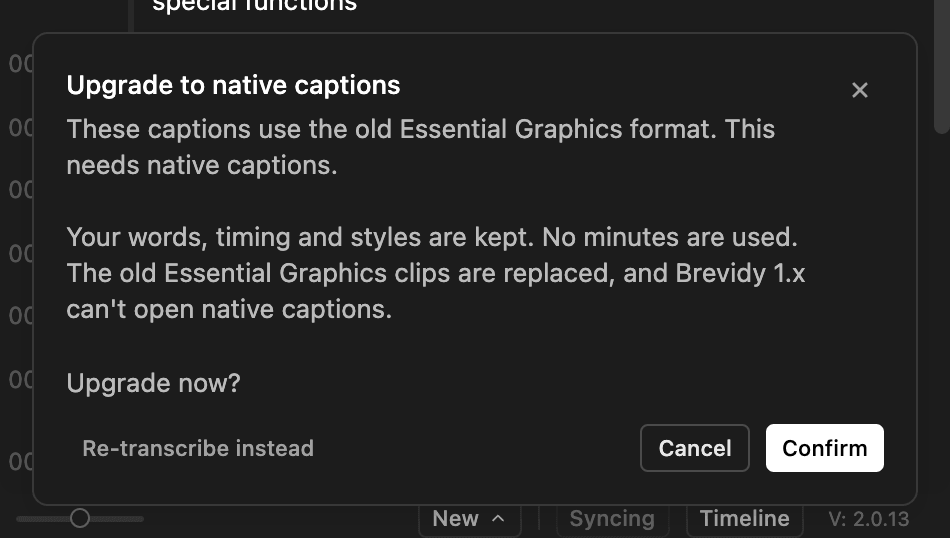
Want a fresh transcript instead? Click Re-transcribe instead. This uses minutes.
Upgraded captions keep their 1.9 timing and don't follow later edits on their own. When you click Sync, Brevidy asks whether to re-transcribe them. To caption footage you added next to them, re-transcribe the set. See Imported and upgraded captions.
- Upgraded captions can't be edited in 1.9. If someone still edits the project in 1.9, leave the set alone.
Unlock <tracks> to upgrade these captions.Unlock those tracks and try again.Old captions stay on: you created captions over visible 1.9 captions. Hide or delete the old ones.
Where things moved#
| In 1.9 | In 2.0 |
|---|---|
| Set In and Out points, then create | Drag the caption layer, then click Create |
| The ⋮ menu | Your account picture at the top right |
Re-Sync | Sync at the bottom of the panel |
Re-Transcribe | Clear Transcript Cache in the account menu, then create again. Uses minutes |
Export SRT | Export captions… in the set switcher |
Import SRT | or import from SRT in the Create window, or Import captions… in the set switcher |
| Translate while transcribing | New translation… in the set switcher |
| Active Text and Misc style tabs | Spoken and Block in the Style window |
Go back to 1.9#
In the panel (Brevidy 2.0.14 or later), the easiest way:
- Click your account picture, then
Settings. - Under
Brevidy 1.9, clickGo back to Brevidy 1.9. - Click
Go back to 1.9. - When the notice says 1.9 is installed, restart Premiere.
On the website:
- Sign in and open your Account page.
- Turn on
Stay on Brevidy 1.9. The switch alone doesn't install 1.9. - Under it, click
Download Brevidy 1.9, then clickDownload Brevidy 1.9on the page that opens. - Quit Premiere, run the installer, then open Premiere.
You can also start from Releases: its Go back to Brevidy 1.9 button turns on the switch and downloads 1.9 in one step.
While Stay on Brevidy 1.9 is on, 1.9 won't offer 2.0 updates.
Your projects: nothing is deleted. 2.0 captions and titles keep playing and exporting, but 1.9 can't edit them. Don't click Create New over them in 1.9, or you'll get two sets.
Come back to 2.0:
- Turn off
Stay on Brevidy 1.9on your Account page. - Open Premiere and click
Update nowwhen 1.9 offers 2.0. - Restart Premiere.
On a team, your admin's version setting wins over your own Stay on Brevidy 1.9. See Brevidy versions on a team.
Good to know#
- No captions after updating? Restart Premiere after the effect installs. See "Failed to add Brevidy Captions effect".
- Move the
.brevidyfolder next to your project file along with the project. See Where your captions are saved.