Several styles in one caption set
Give different caption blocks different styles, for example one color per speaker, with the style rail and Assign by speaker.
One caption set can use more than one style. Every set has a Default style, and you can add named styles such as "Host" or "Guest".
The style rail is the thin colored bar at the left edge of the transcript. Each block's stretch shows its style's color. Hover it to see the name.
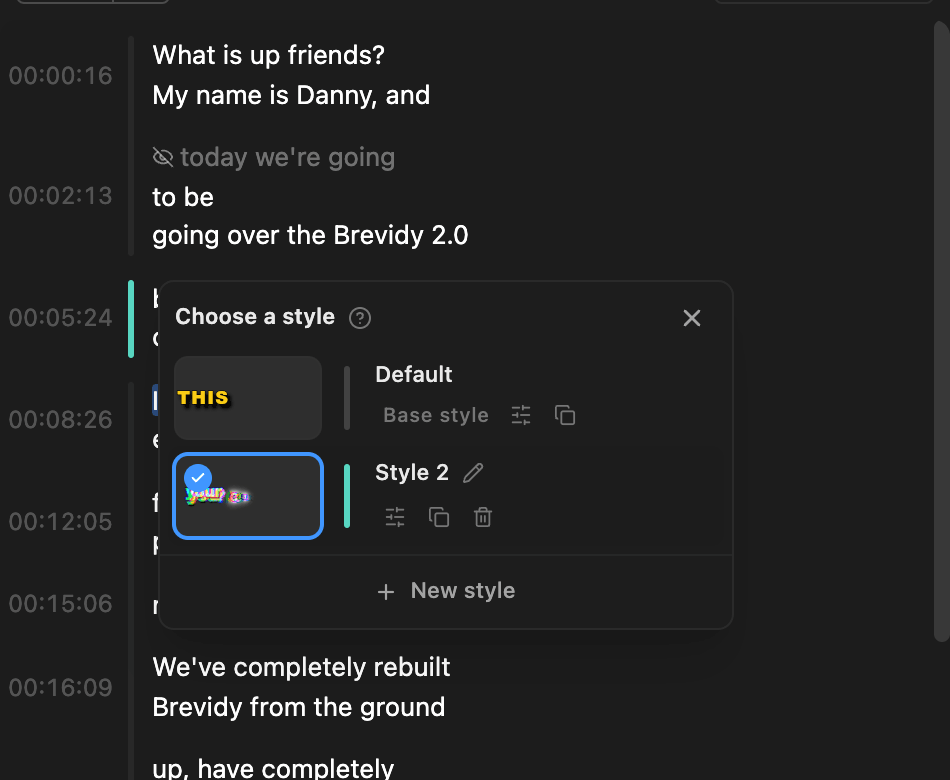
Give blocks a style#
- Drag along the style rail across the blocks.
- In
Choose a style, click a style, orNew styleand pick a preset.
To change a run, drag its top or bottom end, or click it and pick another style. To put blocks back, pick Default.
Edit, rename or delete a style#
- Edit: open
Style>Editand pick the style in the style switcher. Changes apply to every block that uses it. - Rename, duplicate or delete: hover the style in
Choose a styleor the style switcher. Deleted styles' blocks go back toDefault.
Assign styles by speaker#
If Brevidy found more than one speaker, it can give each their own style.
- Click
⋯(Style actions) next toStyle. - Click
Assign by speaker.
The first speaker keeps Default. Other speakers get your existing styles first, then new copies of Default named after them. Change their colors or apply a preset to tell them apart. To name speakers first, see Name or merge speakers.
Go back to one style#
Click Style actions > Revert to default and confirm.
Good to know#
- Settings such as
Include Punctuationand the font belong to each style.Hide During Gapapplies to the whole set. - A caption block never mixes two styles.