Export and import captions
Save a caption set as SRT, WebVTT, MCC, SCC, TTML or plain text, or bring in an SRT or WebVTT file as a new caption set.
Export a caption set as a file for YouTube and social platforms, web players, broadcast, or as a plain transcript. Files go to your Downloads folder. You can also import an SRT or WebVTT file as a new caption set.
Export a caption set#
- Pick the caption set in the set switcher.
- Open the set switcher again and choose
Export captions…. - Pick a format.
- If the sequence has more than one set, choose
This caption setorAll N caption sets. - Click
Export.
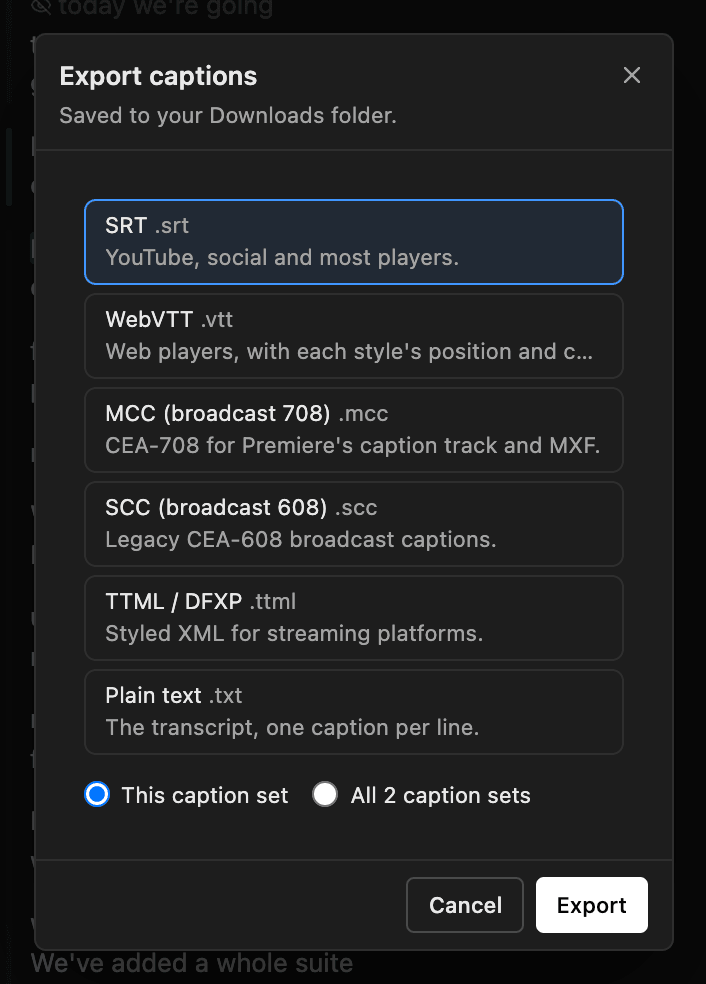
Files are named <sequence> - <set name> (<LANG>).<ext>. A file with the same name is overwritten without asking.
Formats#
| Format | Use it for |
|---|---|
SRT | YouTube, social platforms and most players |
WebVTT | Web players. Keeps each style's position and colors |
MCC (broadcast 708) | Broadcast captions for Premiere's caption track and MXF files |
SCC (broadcast 608) | Older broadcast captions |
TTML / DFXP | Styled captions for streaming platforms |
Plain text | The transcript, one caption per line |
SRT keeps your line breaks and text exactly as typed, so Include Punctuation and text case don't change it. Words hidden with Hide from render are left out of every format.
Broadcast captions (MCC and SCC)#
Open the sequence before you export: captions start at its start timecode, at its frame rate.
- MCC works at 23.976, 24, 25, 29.97, 30, 50, 59.94 and 60 fps.
- SCC is always 29.97 fps. At other rates Brevidy converts the times.
- Broadcast captions fit 32 characters by 4 rows. Brevidy re-wraps and splits captions to fit, and the notice lists each change.
Bring exported captions into Premiere#
Brevidy doesn't add a caption track to your sequence. To put an MCC or SCC file on Premiere's caption track:
- Choose
File>Importand pick the.mccor.sccfile. - Move the playhead to the first frame of the sequence.
- Drag the file from the Project panel onto the timeline at the very start of the sequence. Premiere adds a caption track.
Premiere times the captions from where you drop the file, not from the timecodes inside it. Drop it anywhere else and every caption is off by the same amount.
To deliver an MXF file with captions inside, choose File > Export > Media and set the captions option to embed them.
Import captions#
Bring in an SRT or WebVTT file as a new caption set. It uses no minutes. Importing is on paid plans.
- Open a sequence with no captions yet.
- Under
Create New, clickCaptions. - In the Create window, click
or import from SRTunderCancel. - Pick the
.srtor.vttfile and wait for theCaptions importednotice.
The or import from SRT link is only in the Create window, so it's only there on a sequence with no captions. To import onto a sequence that already has captions, open the set switcher and choose Import captions….
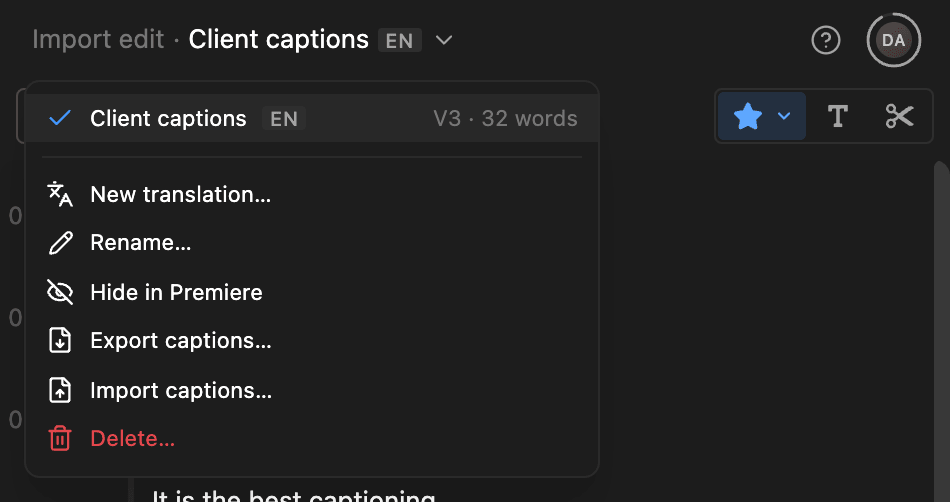
The new set is named after the file and goes on a track above your other caption sets. Each caption in the file becomes one caption block, with its line breaks kept. It starts with your current preset; change it in Style.
- Your other caption sets aren't changed.
- A file written from the sequence's start timecode (for example
01:00:00,000) lines up with the sequence. - The notice says if Brevidy skipped empty captions or shortened overlapping ones.
Imported captions keep the times in the file. They don't follow later edits to your footage. When you click Sync, Brevidy asks before changing them. See Imported and upgraded captions.
Good to know#
- You can export captions made with Brevidy 1.9 without upgrading them.
- Use WebVTT for web players, not Premiere.