AutoCrop
Reframe part of a sequence to a new shape, such as 16:9 to 9:16, following the person speaking, in a new sequence.
AutoCrop reframes part of your sequence to a new shape, for example 16:9 to vertical 9:16. It follows the person speaking and keyframes the crop in a new copy of the sequence. Your original isn't changed.
Before you start#
- AutoCrop needs a Producer or Team Pro plan. See Plans and features.
- AutoCrop works on up to 8 minutes at a time and needs an internet connection.
- It works best with people clearly in shot, such as interviews, podcasts and talking heads.
Reframe a sequence#
- Open the sequence you want to reframe.
- Press
IandOin the timeline to set In and Out points around the part you want. - Choose
Window>Extensions>Brevidy AutoCrop. - Choose an
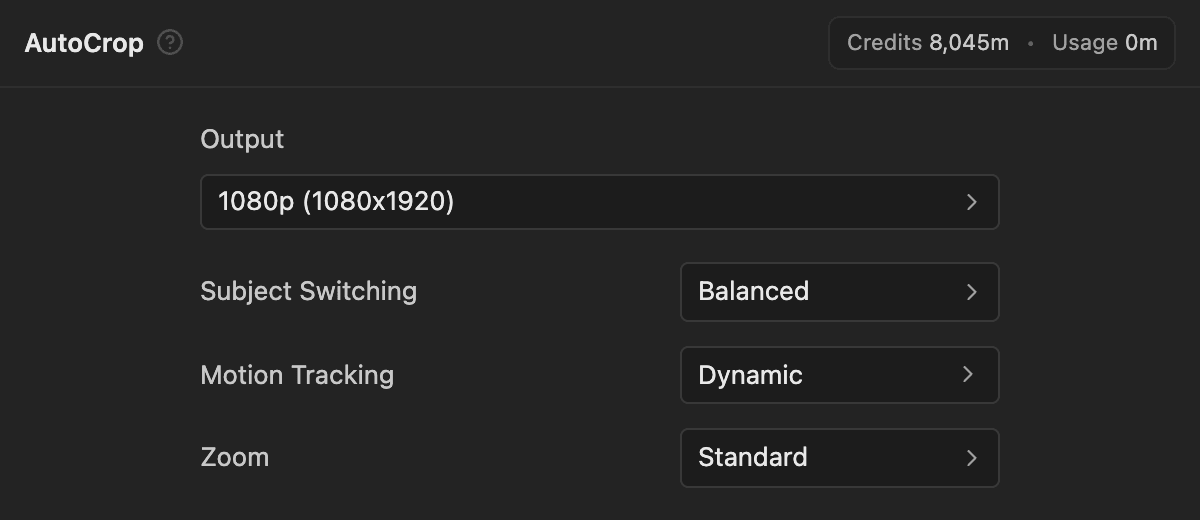
Outputshape and size. The other defaults suit most footage. - Click
Run AutoCrop. Premiere is busy while it renders. - When you see "AutoCrop Complete", open the new sequence from the "Brevidy AutoCrop" bin in your Project panel.
What AutoCrop changes#
- The copy is cut at each scene change on every track.
- Every video clip in the copy, including B-roll and overlays, gets a keyframed Transform effect that replaces any Transform effect already there.
- Brevidy captions are left as they are.
Settings#
| Setting | What it does | Default |
|---|---|---|
Output | 9:16 (Vertical), 16:9 (Horizontal), 1:1 (Square) or 4:5 (Portrait), each at 720p, 1080p or 4K | 9:16 (Vertical), 1080p (1080x1920) |
Subject Switching | How readily the crop moves to a new speaker. Stable switches less, Responsive faster | Balanced |
Zoom | No Zoom keeps the widest shot. Standard zooms in some when it helps. Close frames more tightly | Standard |
Good to know#
- Without In and Out points the panel shows "Setup Required". Ranges longer than 8 minutes are refused, so work in parts.
- AutoCrop uses video workflow minutes for the length of your range. See How minutes are counted.
- If you switch sequences while it runs, it still applies to the sequence you started from.