Edit words
Fix words, split caption blocks, highlight words and set line breaks, all in the Brevidy transcript.
The transcript in the Brevidy panel is your caption editor. Type in it like a document and the captions update as you go.
Fix a word#
- Click the Text tool (the
Ticon) at the top right of the transcript. - Click where you want to make a change.
- Type your correction.
Correcting a word keeps its timing. To undo, press Ctrl + Z. To redo, press Ctrl + Shift + Z. This is the same on Mac and Windows.
Split and join caption blocks#
A caption block is the lines on screen at one time. With the Text tool:
Enterin the middle of a block starts a new line in the same block.Enterat the start or end of a block starts a new block.Shift+Enterin the middle of a block moves the rest into a new block.Backspaceat the start of a line or block joins it to the one before.Deleteat the end of a block joins the next block to it.
Find and replace#
- Click the Text tool again (or the small arrow next to it) to open its menu.
- Click
Find & replace. - Type the word in
Find, and the new text inReplace. - Click
Replacefor the current match, orReplace All.
Act on selected words#
Select words with the Text tool, then click the Selection button under them:
Add media: see Add media from your transcript.Pop out as title: see Make a title.Hide from render: see below.Retimeplaces one clip per word on the Premiere timeline. Drag them into place, then clickConfirmon the notice.
Hide words from the video#
- Select the words with the Text tool.
- Click
Selection>Hide from render.
Hidden words stay in the transcript, dimmed. To show them again, choose Selection > Unhide.
Highlight words#
Highlighted words get the Highlighted look of your caption style. See Spoken and highlighted words.
- By hand: click the Highlight tool (the star icon), then click a word. Click it again to remove the highlight.
- Suggest highlights: click the Highlight tool again to open its menu, then click
Suggest highlights. Needs a plan with AI tools. See Plans and features. - Clear all highlights: in the same menu, click
Clear all highlightsand confirm.
Line breaks#
Set lines and characters#
- Click the Text tool again to open its menu.
- Set
Linesto the most lines in one block (default 2). - Set
Charsto the line length in characters (default 24).
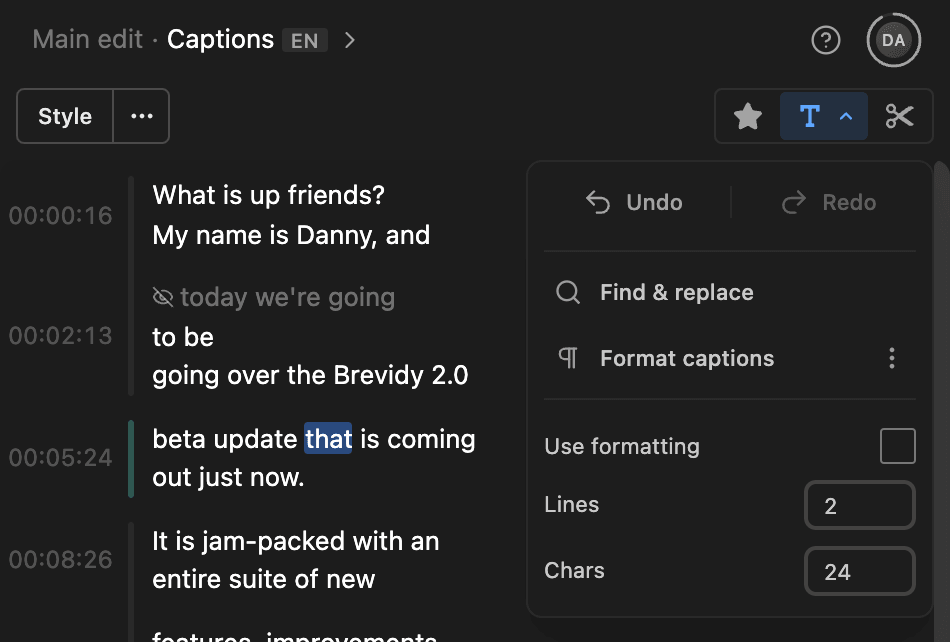
Captions reflow as you type. A line can run about 10% over Chars so a short word doesn't end up alone. Each caption set has its own Lines and Chars.
Choose where captions split#
Brevidy also starts a new block at speaker changes, pauses and the punctuation you pick.
- In the Text tool menu, click the
⋮button next toFormat captions. - Turn
Split at speaker changesandSplit at time gapson or off. - Set
Min gap (sec), the shortest pause that starts a new block (default 0.5). - Under
Split at punctuation, click a mark to cycle it throughOff,LineandBlock. By default.!?are onLine. - Click
Save. - Click
Format captionsto re-split the current set.
Changing Lines or Chars uses these rules only when Use formatting is on. With it off (the default), Brevidy re-splits only at pauses of 2 seconds or more and where the style changes.
Good to know#
- Can't type? Check that the Text tool, not the Highlight tool, is selected.
- Fixes follow the footage. Corrected words are saved with the footage's transcript on this computer, so other sequences, Sync and AutoCut get them too. Deleting a word only affects this sequence.
- Words you type that the speaker never said get an estimated time. To fine-tune it, use the Caption Timeline.
- Blocks break mid-sentence? Brevidy may think a new person started talking. Merge the speakers or turn off
Split at speaker changes. See Podcasts, multi-mic and speakers.