Edit a title
Move, size, rewrap and restyle a title on the stage in the Brevidy panel, change its words, and set how it comes in and leaves.
The stage draws your title over a frame from your sequence, inside the Brevidy panel. It's the only place to edit a Brevidy title.
Open a title#
Click the title clip in the Premiere timeline. The Brevidy panel switches to the Title view. To go back to the transcript, select something else.
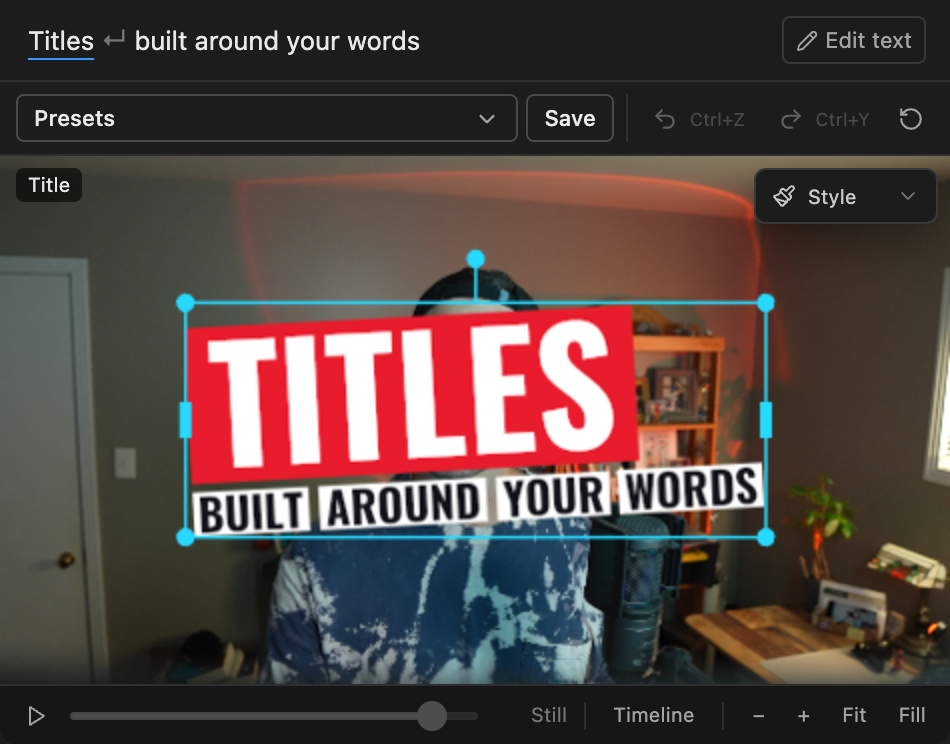
The toolbar has Presets, Save, Undo, Redo and Reset. Reset goes back to the preset's layout.
Pick the title or some words#
- Click the title to pick the whole title.
- Click a word in it to pick only that word. Drag a box, or hold
Shift, to pick several. - Press
Escto step back out.
Move, size and rotate#
- Move: drag it. Arrow keys nudge it. Hold
Cmd(Mac) /Ctrl(Windows) to turn off snapping. - Size: drag a corner handle.
- Rotate: drag the knob above the box.
- Rewrap: pick the whole title and drag a side handle. Double-click a side handle to go back to the look's own wrap.
- Word spacing: drag the handle in a gap between words.
Set word types#
Each word has a type that decides its style within the look: Normal, Hero, Accent, Small, and any the look adds.
- Pick one or more words.
- Click the type button under the box, for example
Hero ▾, and choose a type.
Cmd + 1 to 9 (Mac) or Ctrl + 1 to 9 (Windows) also set the type.
Change the words#
- Click
Edit textabove the stage. - Change the text. Press
Enterto start a new line. - Click
Done, or pressCmd+Enter(Mac) /Ctrl+Enter(Windows).
Words you keep stay where they are. New words are styled the way the look would.
Preview and zoom#
- Click
Playin the stage bar to watch the title animate. Drag the scrubber to check a moment. - To change when each word appears, click
Timeline. See Retime words in the Caption Timeline. - Zoom with
−and+.Fitshows the whole frame. HoldSpaceand drag to pan.
Undo: Ctrl + Z, on a Mac too. Premiere takes Cmd + Z for its own Undo. Redo is Ctrl + Shift + Z. Click the stage first so it has focus.
Style and animate a title#
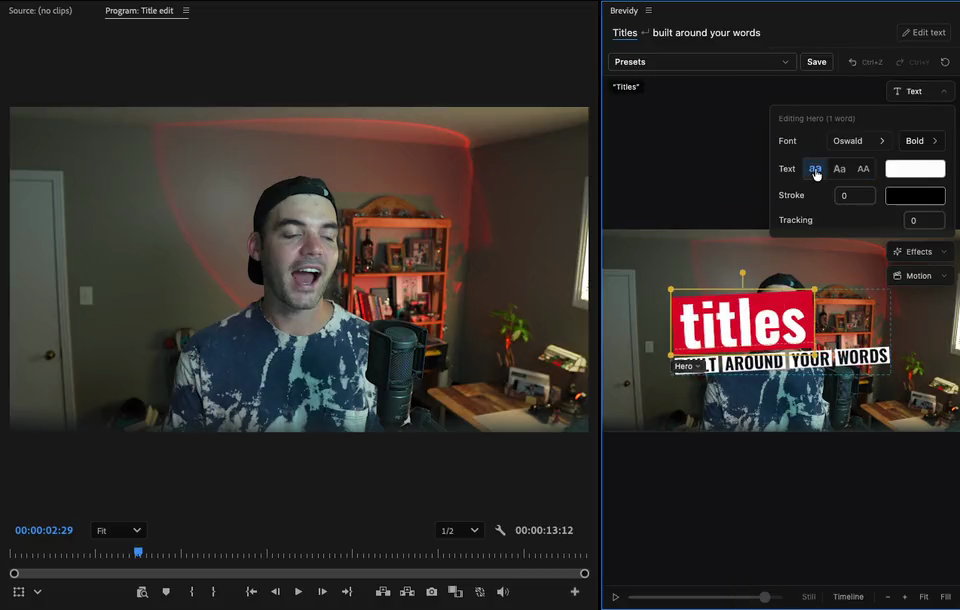
Style some words#
- Pick the words you want to change.
- Click a style button on the stage edge:
Text: font, case, fill color, stroke and tracking.Effects: effects such as Drop Shadow or Glow, andWord BG, a background behind each word.Motion:In, how these words come in.
- Change the settings. Press
Escto close the card.
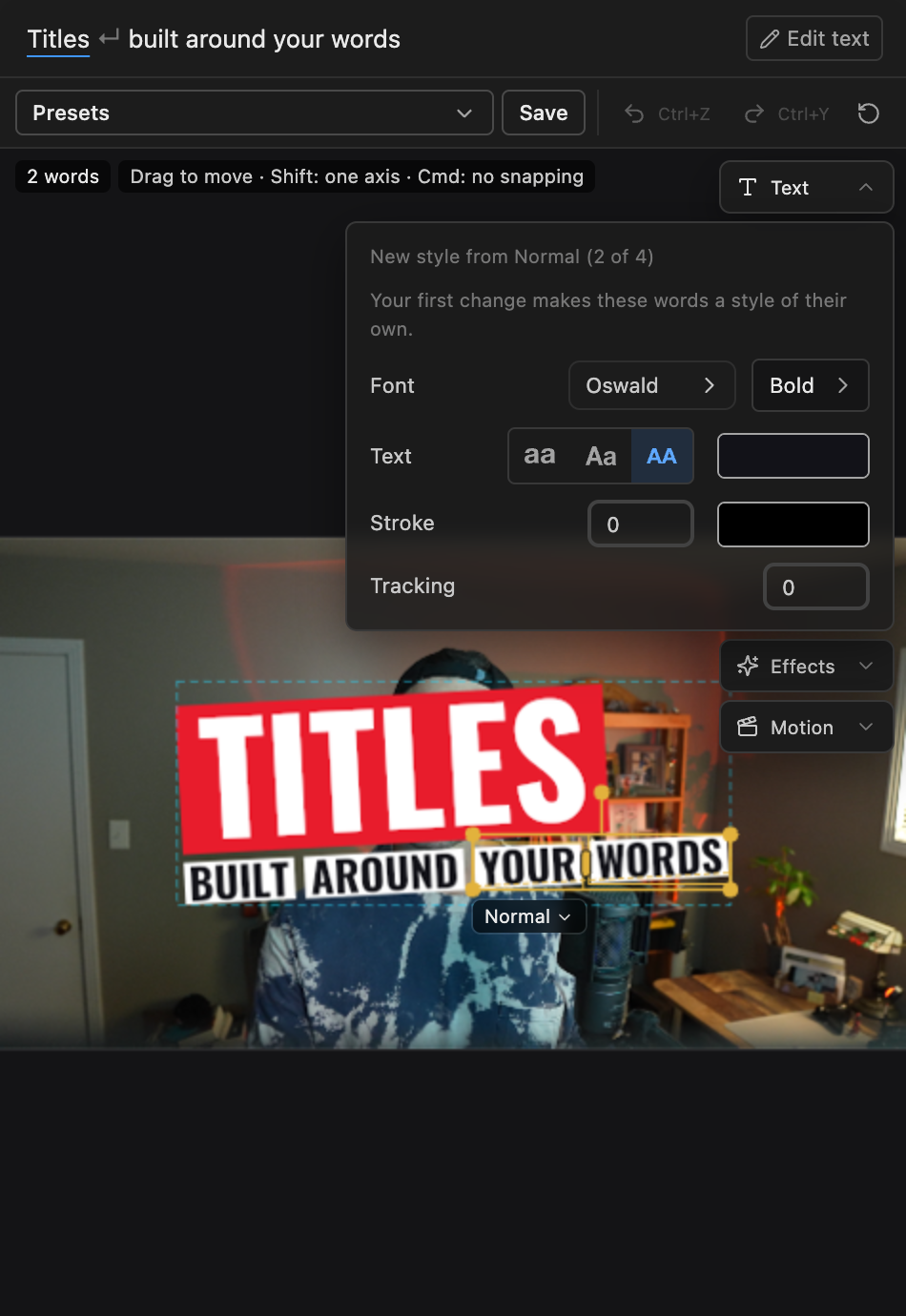
Words of the same type share one style. If you pick only some words of a type, your change gives them a type of their own, such as "Hero 2". See Effects and animations.
Style the whole title#
- Click the title once so the whole title is picked.
- Click
Styleon the stage edge. - Change
Reveal all at once,In,Out, or theBackgroundbox.
Words appear one by one: a popped-out title reveals each word as it's spoken, a typed title one after another. Reveal all at once shows them together.
How the title leaves#
- Pick the whole title and click
Style. - Click
Outand choose aStyle, such asFade. WithNone, the title ends with its clip.
| Setting | What it does | Default |
|---|---|---|
Applies to | Each word, Each line or The whole title | Each word |
When | At the end of the clip, or After each is said (each piece leaves after Delay) | At the end of the clip |
Order | With At the end of the clip: In order, Reverse, Random or All together | In order |
Good to know#
- A title keeps its own copy of its words. Transcript edits and Sync don't change it, so use
Edit text. - "This title couldn't be opened" means Brevidy can't read the title's file. If you moved the project, move its
.brevidyfolder with it. Otherwise delete the title clip and add it again. See Where your captions are saved. - If a font isn't on your computer, Brevidy shows a lookalike and tells you. See Fonts.