The text tool is now your unified caption editor. It combines text editing and paragraph formatting in one place, so you can fix transcription, split or merge lines, and move words and blocks like you would in a regular document.
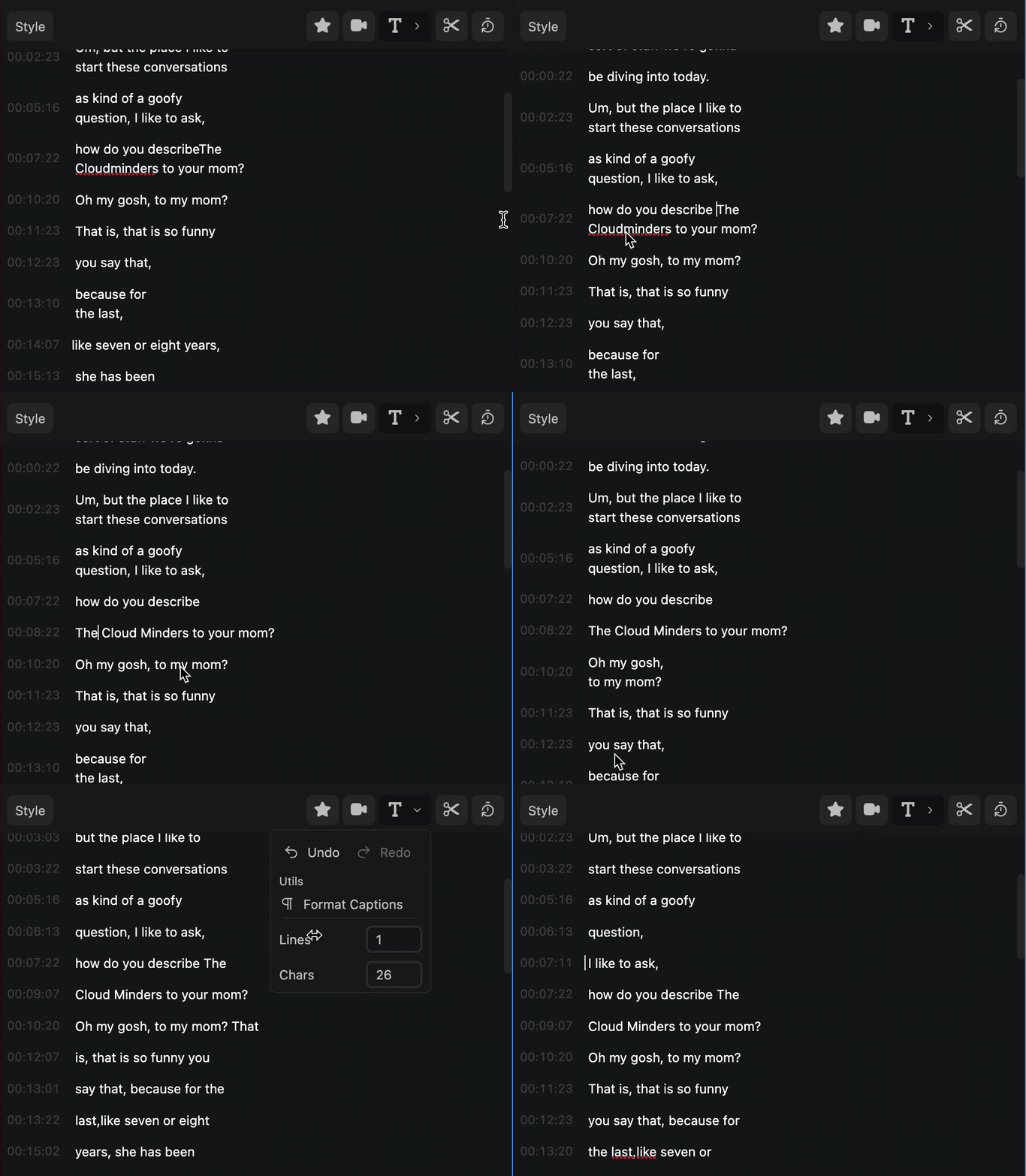
Paragraph controls are now part of the text tool.
How to edit caption text
- Click on the text tool icon in the toolbar.
- Click on the block of text you want to edit.
- Make your changes in the text editor using your keyboard.
- Edits are automatically applied.
You can use the Undo button or CTRL + z to revert your changes.
Edit like a document
The text editor behaves like a regular word doc:
- Press
Enterto start a new line inside the same caption block (a line break within that block). - Hold
Shiftand pressEnterto send everything after the cursor into a new caption block with its own timing, instead of only adding a new line. - Press
Backspaceat the start of a block to merge with the previous block, or merge lines within a block as you edit. - Move words and lines naturally without switching tools.
Controlling the amount of lines
Use the Lines slider to increase or decrease the number of lines in each caption block.
Controlling the amount of characters
Use the Characters slider to control how many characters appear per line in each caption block.
Format captions
Use the Format Captions button to automatically format captions for readability. It reflows text using your line and character settings and can split on things like speaker changes, pauses, and punctuation so blocks stay easier to read.
Advanced formatting options
Next to Format Captions, click the three-dot (more) button to open Format Captions settings. There you can tune how automatic formatting behaves:
- Split at speaker changes — start a new block when the speaker changes.
- Split at time gaps — start a new block when there is a long enough pause in the transcript. Set Min gap (sec) for how long that pause must be (this value applies when time-gap splitting is on).
- Split at punctuation — choose which marks should end a block (for example
.,,,!, and?for Latin languages; Japanese, Chinese, and Korean transcripts include full-width punctuation; Arabic and related languages include marks such as the Arabic question mark). You can turn individual marks on or off.
Choices are saved for the next time you format or create captions in the extension.