A client sends you a video and says, “Can we do captions like these?” You can see what they mean. The lettering is bold, the highlighted words stand out, and the captions fit the video without taking it over. Recreating that look takes a little more work. You try a font, adjust the size, change the highlight, and keep checking the reference to see what still feels different.
With the upcoming Brevidy 2.0 release, you’ll be able to use a screenshot to help create a similar caption style inside Premiere Pro. You’ll have something to work with before you start fine-tuning.
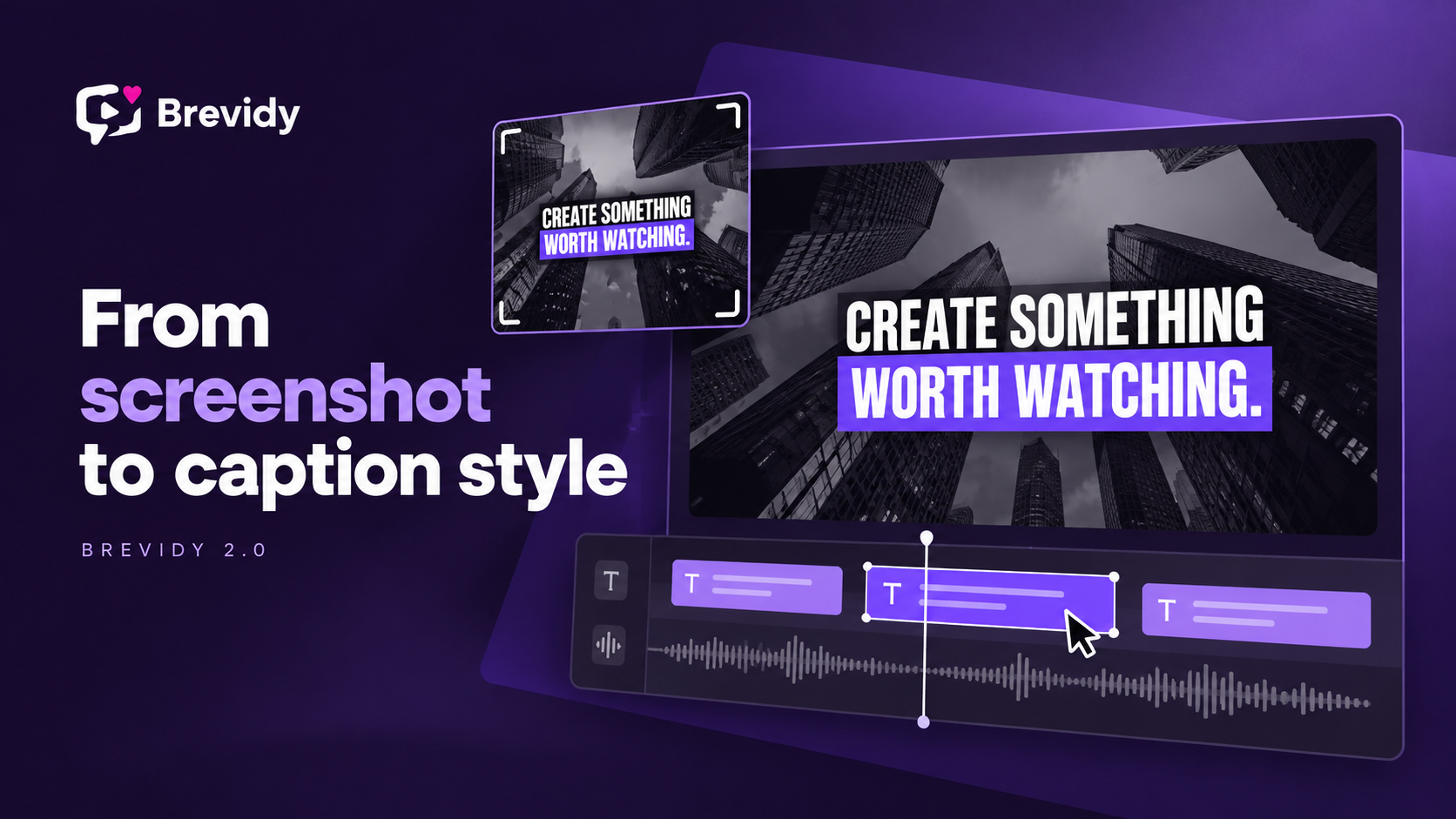
Creating Caption Styles From Screenshots With Brevidy 2.0
Brevidy Studio in 2.0 will let you provide a screenshot as a visual reference and generate a similar caption look that you can preview and adjust. We introduced this upcoming capability in Everything New in Brevidy 2.0, alongside AI Preset Studio’s options for describing a style using text or voice.
For the white-and-purple example, a clear image would establish the main features: heavy lettering, strong contrast, and a colored highlight. You could then assess the generated version and decide what suits your project. Choose a frame where the words are fully visible. Text obscured by playback controls or blurred during an animation makes it harder to judge the look you’re trying to achieve.
An exact duplicate may not be what your video needs. You might want the same bold lettering with your brand’s shade of purple, or smaller text that gives the subject more room. Seeing the style on your footage makes it easier to decide what needs changing.
Creative Control Over Your Animated Captions
The generated version won’t have to be the finished one. You’ll be able to refine the look around your footage, wording, and brand. White text that reads clearly against a dark background may disappear over a bright shot. A short phrase might look balanced while a longer sentence creates awkward line breaks. Placement that works beneath one speaker could cover another speaker’s face.
Animation deserves a separate review during playback. A screenshot captures one moment, so watch how the chosen movement works with the speaker’s delivery and whether each phrase stays readable. The upcoming Style Editor will include more than 40 in and out animations.
For example, you might keep the white lettering and purple emphasis, reduce the text size, and choose a subtle entrance animation. Those adjustments help the captions belong in your edit.
Get a preview of what’s coming in Brevidy 2.0, including the Style from a screenshot demonstration at 11:40 in the walkthrough