You may already know what those words should say and how you want them to look. Bringing that idea into the edit takes more work: choosing which words stand out, arranging the supporting text, and making everything fit around the footage. Each new phrase needs its own attention.
Brevidy 2.0’s title system will help turn your text into an editable layout inside Premiere Pro, automatically sizing, stacking, and styling the words. You’ll have a design to work with, ready to refine for your video
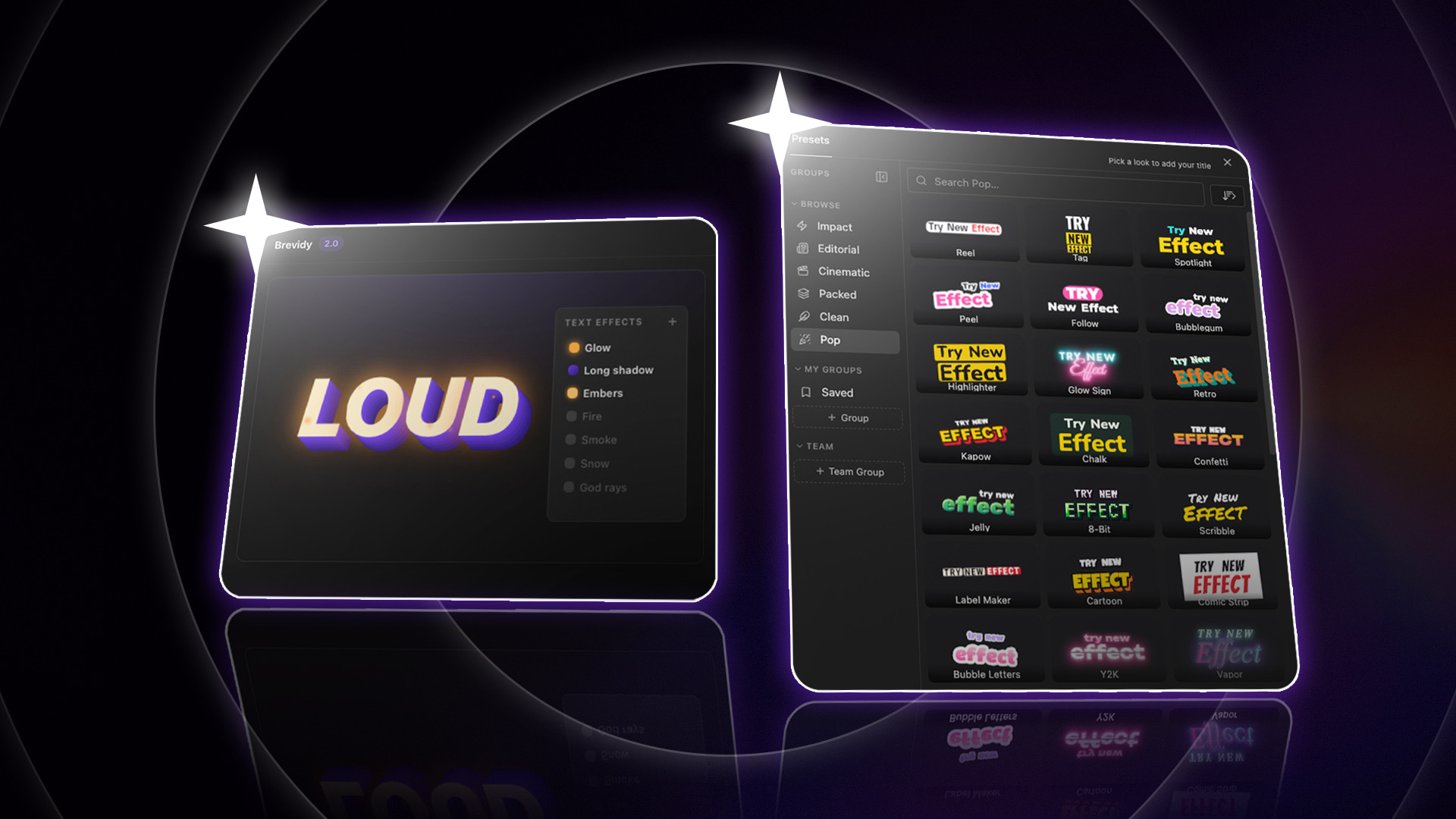
Automatic Title Layouts in Premiere Pro
Brevidy Titles will begin with the words you want on screen. Enter a line, and Brevidy will identify a hero word, the word that receives the strongest visual emphasis. Choose a template, and it will size, stack, and color the words to create the title’s layout. For an opening such as “Your Next Big Idea Starts Here,” you won’t need to set every word’s size and position individually before seeing a composition. The template will provide the initial arrangement, and you can assess whether its emphasis suits your message.
This goes beyond applying a font and color to a sentence. The title system handles how the words sit together, giving the main word prominence and arranging the supporting text around it. The Titles segment of the Brevidy 2.0 walkthrough, shows this process inside Premiere Pro. Every word will remain editable afterward. If the result feels too large for the shot or the emphasis needs adjusting, you can refine it. The automatic layout gives you a starting point without locking you into the first design.
Video Titles From Your Transcript
You won’t always need to type a title from scratch. Sometimes the line you want to feature is already in the dialogue. With Pop Out as Title, you’ll be able to select a phrase in the transcript and turn it into a separate title clip. This connects title creation to the words you’re already reviewing while editing, as outlined in the introduction to Brevidy’s new title system.
Imagine a speaker saying, “You can’t improve what you haven’t started.” You could select that phrase and give it its own title treatment before the video moves into practical examples. The same approach could work for a key takeaway, an opening hook, or a phrase that introduces the next topic. Once the title clip is created, you’ll be able to change its layout, typography, scale, positioning, animation, and styling. A reflective quote might suit a restrained treatment, while an opening hook could use stronger emphasis and movement.
The useful part is the connection between transcript and design: you can take a phrase from the conversation and develop it into a title without retyping it and arranging each word manually.
Editable Titles Across Different Video Formats
Brevidy’s automatic layouts will remain customizable and adapt across different aspect ratios. That will be useful when the same project needs a widescreen version for YouTube and a vertical version for social media. A wide title may need a narrower arrangement in a vertical frame. Brevidy will help with that layout change, while the editing controls let you adjust the result around your footage. You can refine the typography, scale, position, animation, and styling to suit each version.
Together, automatic layouts, transcript-based title creation, and editable styling will give you more ways to build titles within the edit. Brevidy will handle the initial arrangement, while you decide how the finished title should look and behave. Your next video already has words worth highlighting. Give them a title that stands out.